How to Create an AI Actor With a Consistent Face and Voice
To create an AI actor, open a new persona, give it a name, and describe the person to the chat in plain words. PersonaFix then makes six photos of the same person and a short voice clip. Approve them to cast your actor in videos, where they keep the same face and voice.
7 stepsUpdated
Screenshots show an example account. Prices are blurred because the example numbers are not real prices.
Step 1: Open a new persona
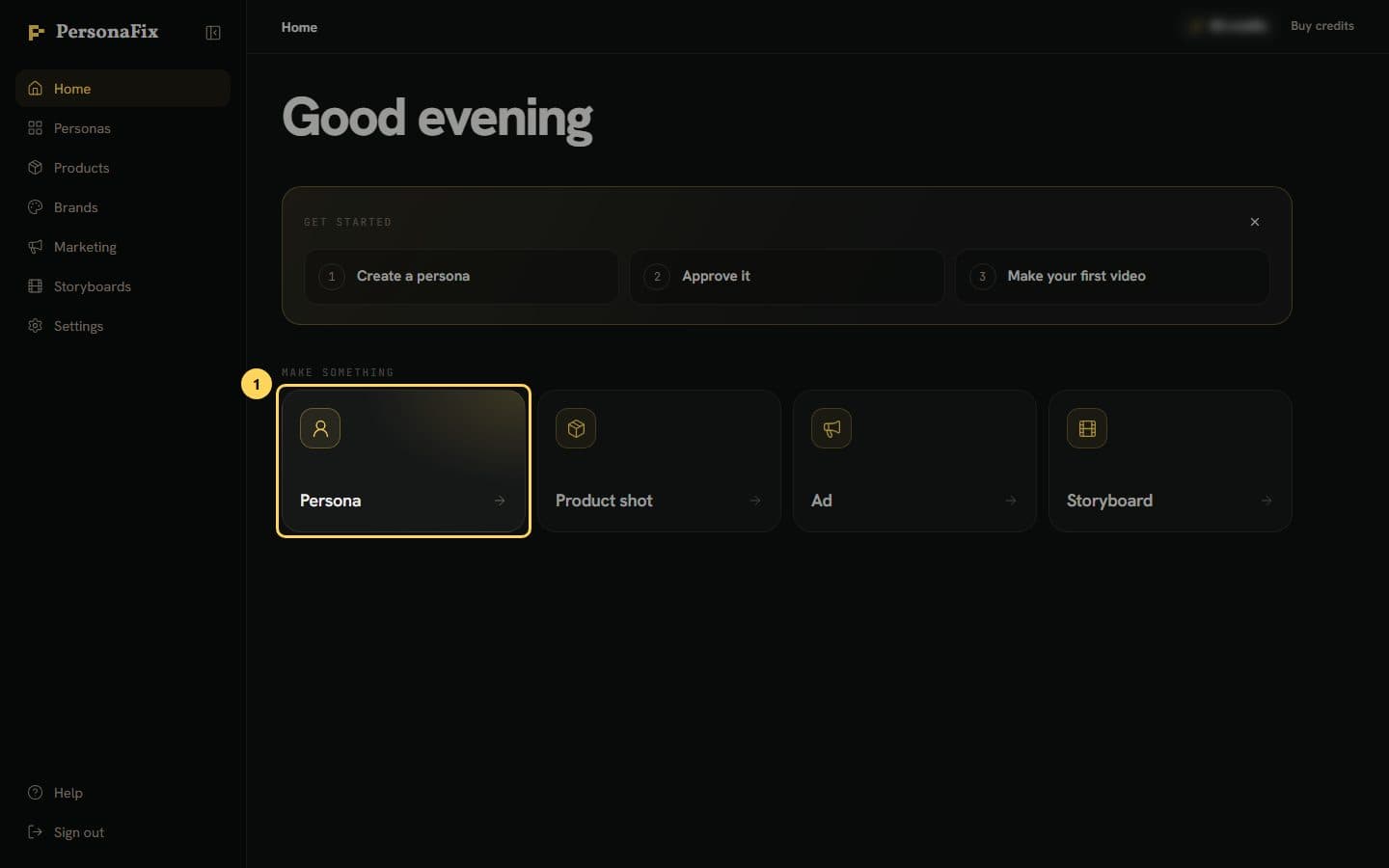
On the home screen, press Persona under Make something. The Create button on your Personas page does the same thing.
Step 2: Give your actor a name
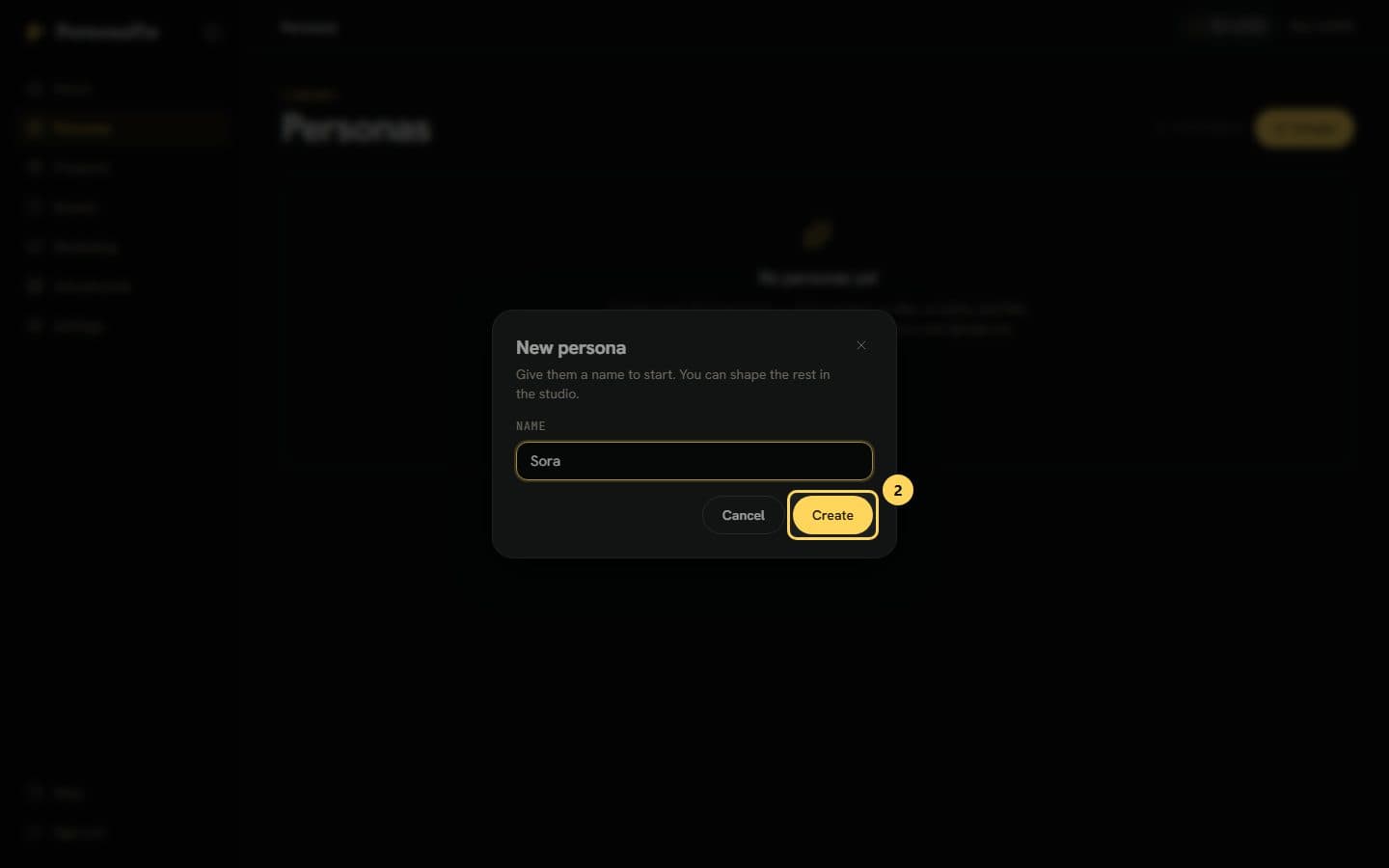
Type a name in the Name box and press Create. The studio opens next, where you shape everything else.
Step 3: Describe the person
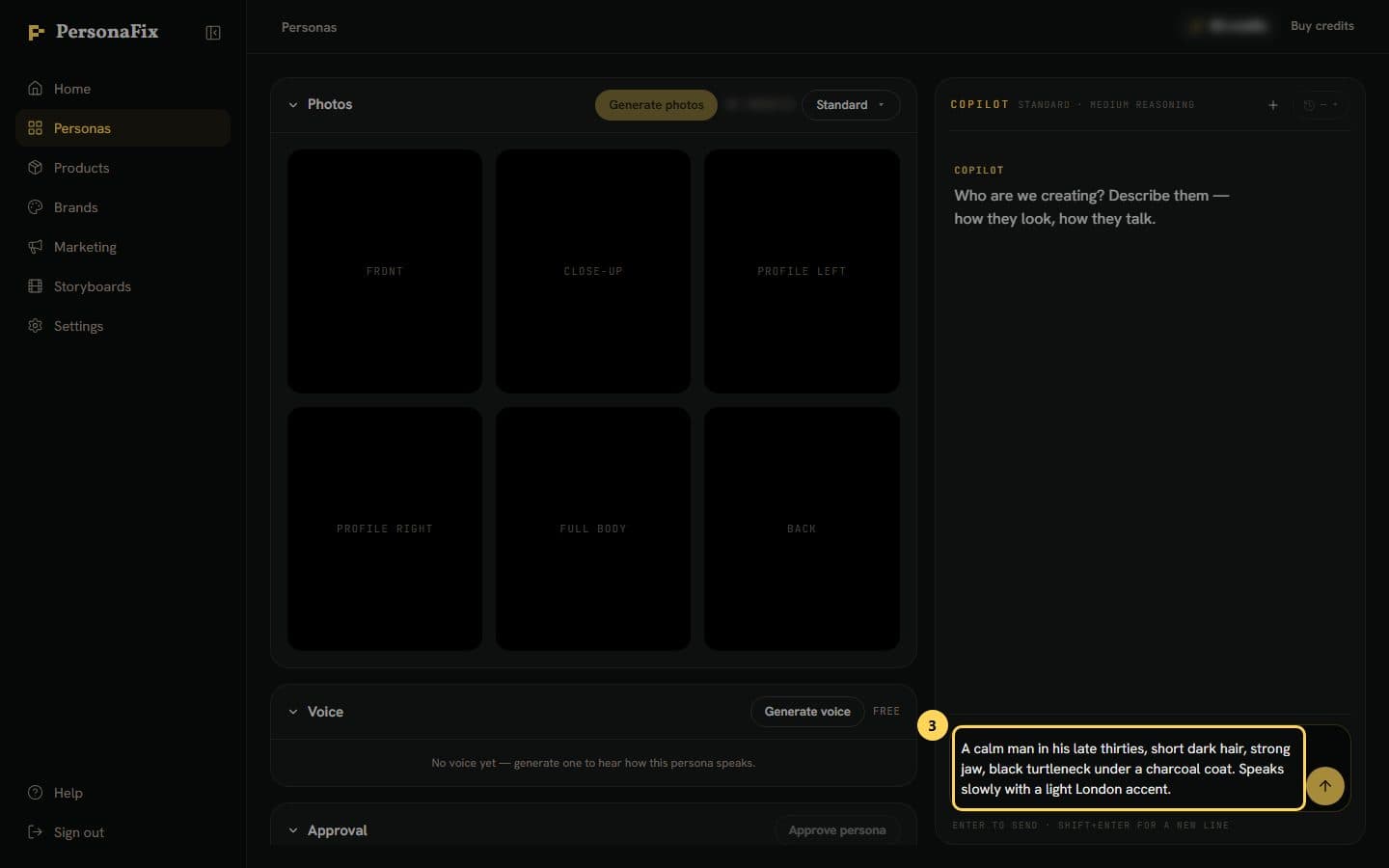
The chat asks who you are creating. Describe how they look and how they talk, the way you would brief a casting director.
Step 4: Check the details, then generate
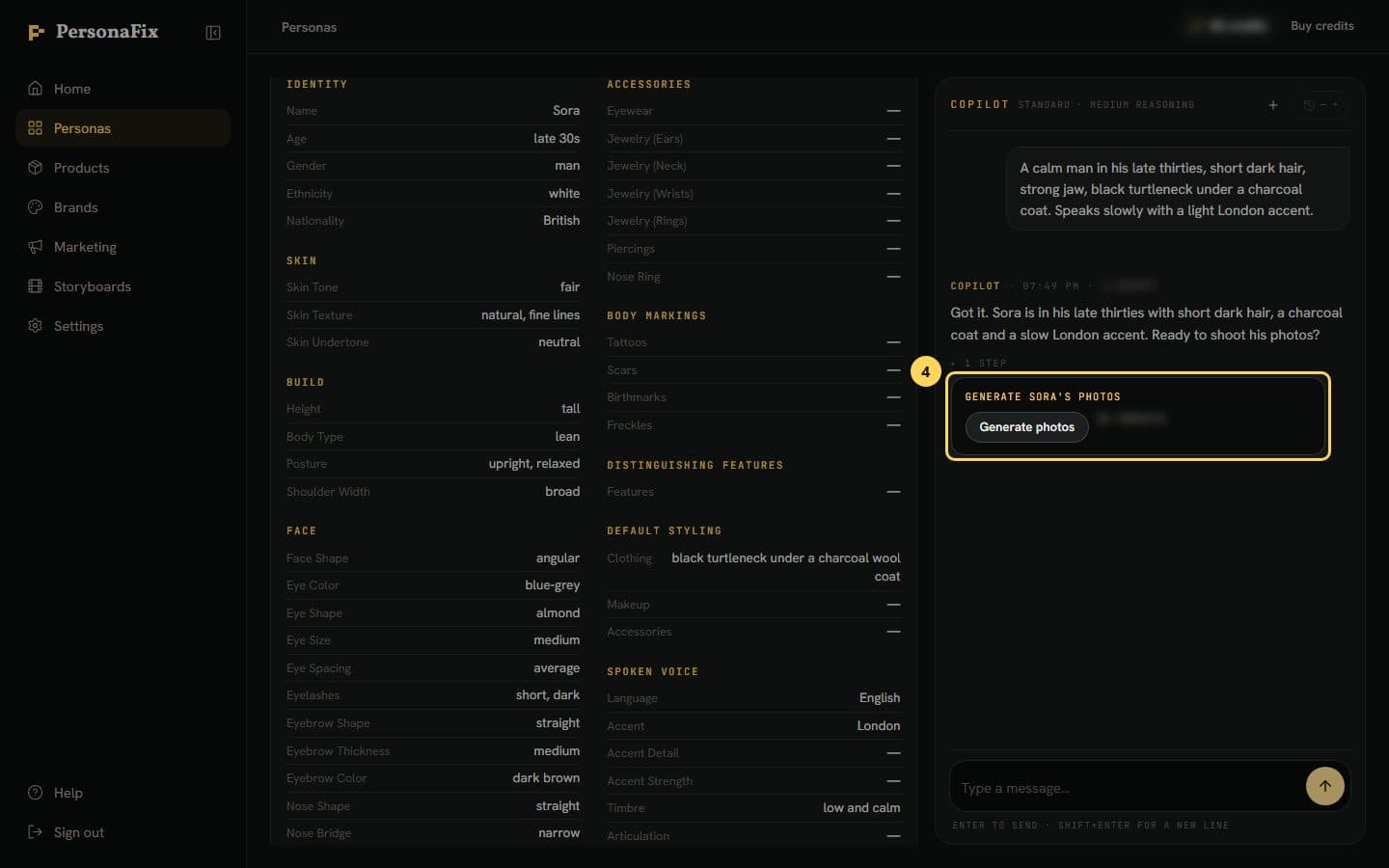
The chat fills in your actor's details from your description and offers a Generate photos button. Fix any detail by hand, then press it.
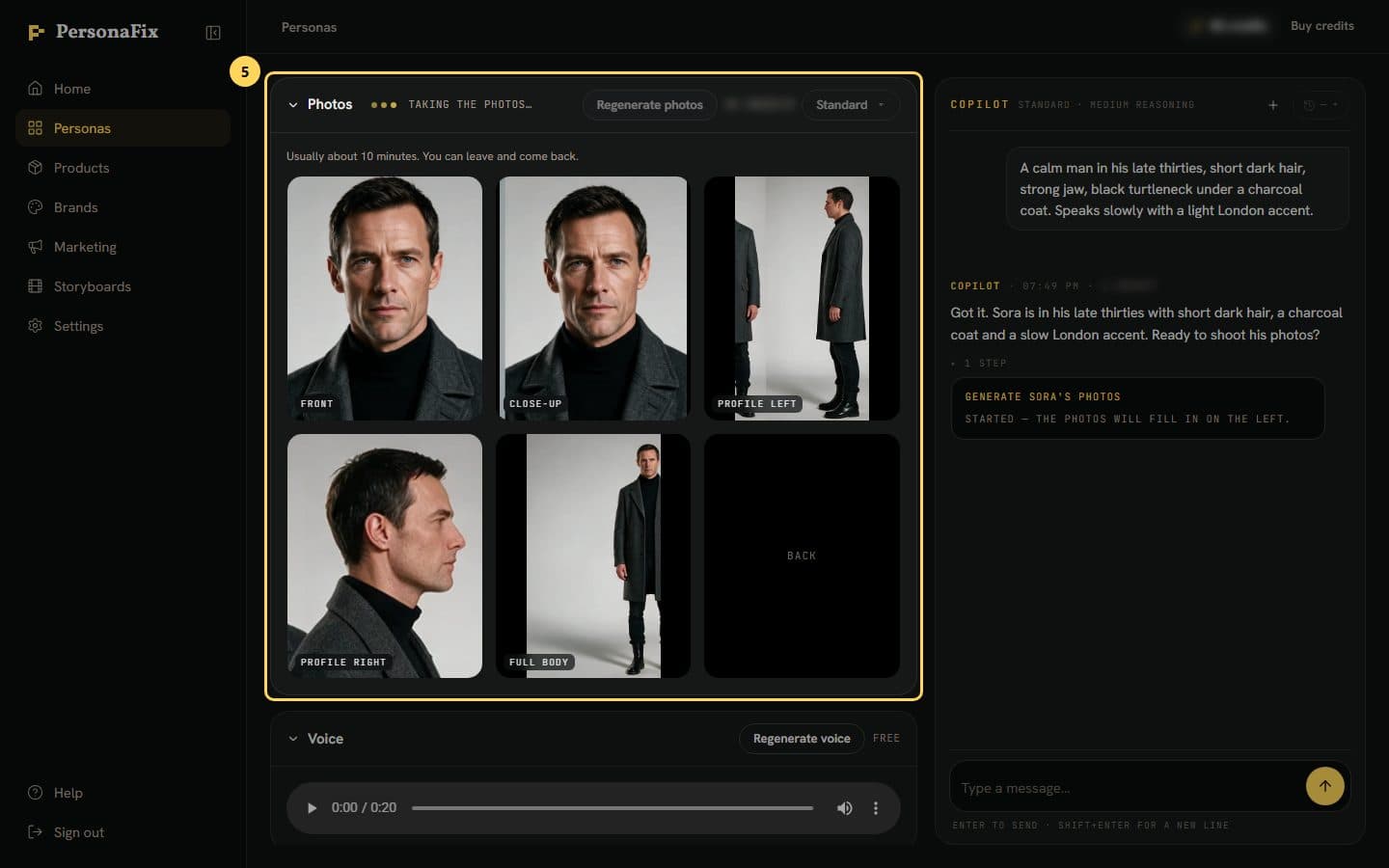
Step 5: Wait for the photos and voice
One run makes six photos (front, both sides, a close-up, full body and the back) plus a voice clip. It usually takes about 10 minutes.
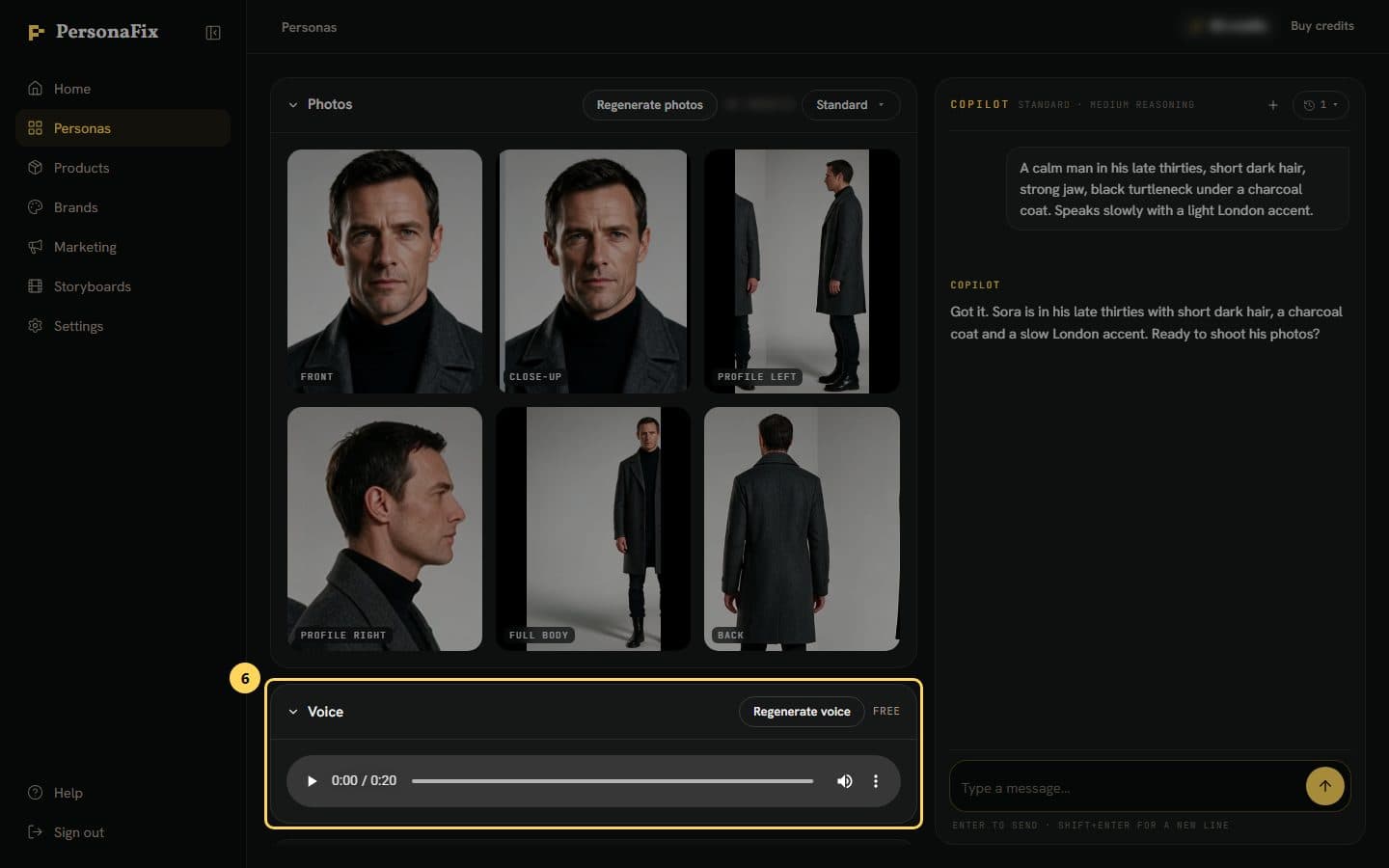
Step 6: Listen to the voice
Play the clip in the Voice panel. If there is no clip, press Generate voice. If it sounds wrong, press Regenerate voice.
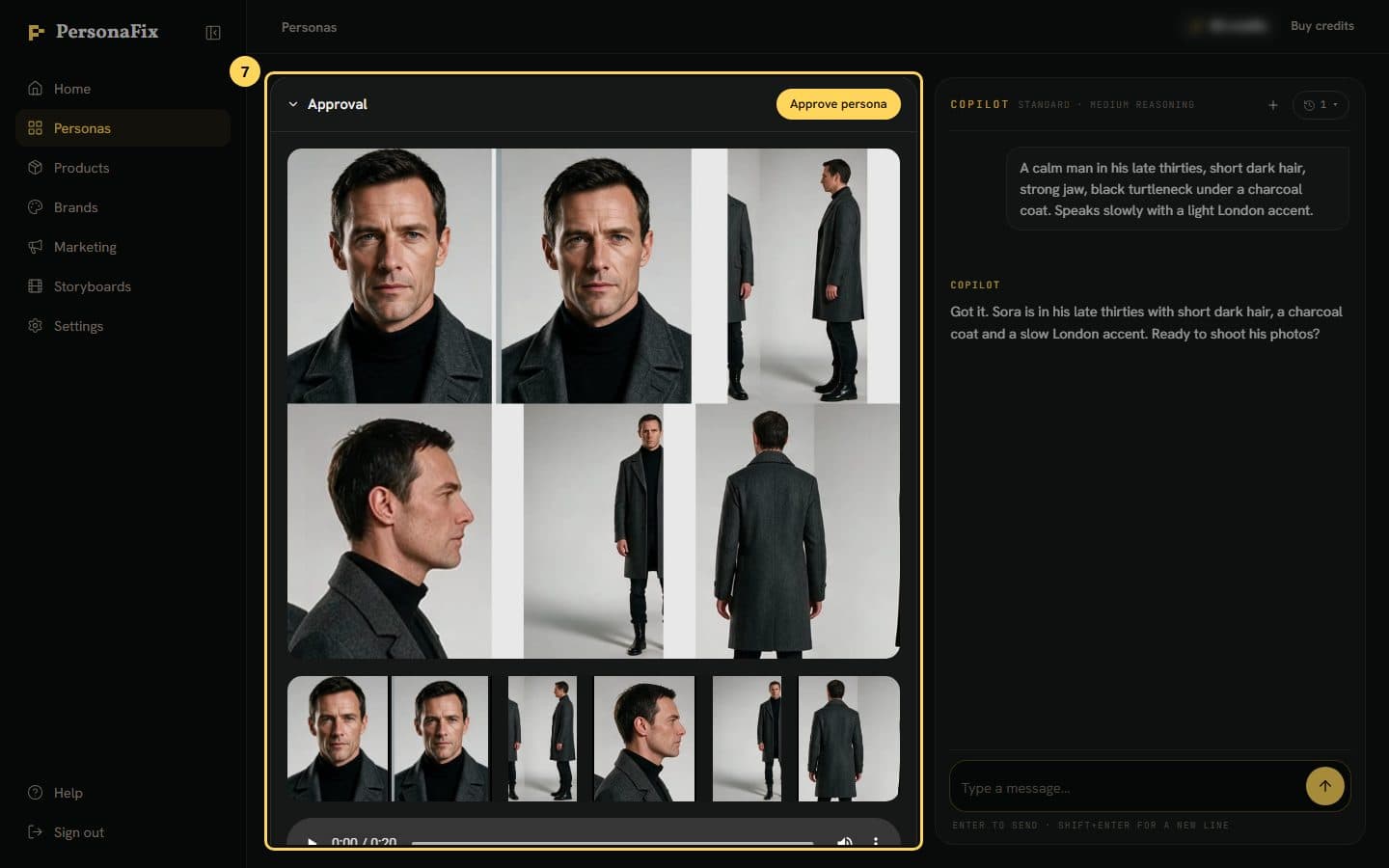
Step 7: Approve your actor
Check the contact sheet of all the photos. When the photos and voice feel right, press Approve persona so you can cast them in videos.
If something goes wrong
- The Generate photos button is greyed out.
- A photo run may already be going, or your balance may be too low. Wait for the run to finish. Credits refill at the start of each billing period.
- The face is not what I pictured.
- Tell the chat everything you want changed in one message, then re-shoot. The edit guide walks through it.
- Can I start from a photo of someone?
- Yes, with their permission. In the studio, say whose face it is and tick the permission box under the chat. Then drop their photos or a video onto the chat. Five angles work best, but one photo is enough.
- I closed the tab while the photos were rendering.
- Open the persona again from your Personas page. The studio checks what is still running and shows its progress.
Still stuck? Contact support.