PersonaFix Help Center: Step-by-Step Guides
Learn how to create an AI actor, make AI videos and ads, and set up your brand. Every guide shows each step with a screenshot, so you can follow along.
Guides
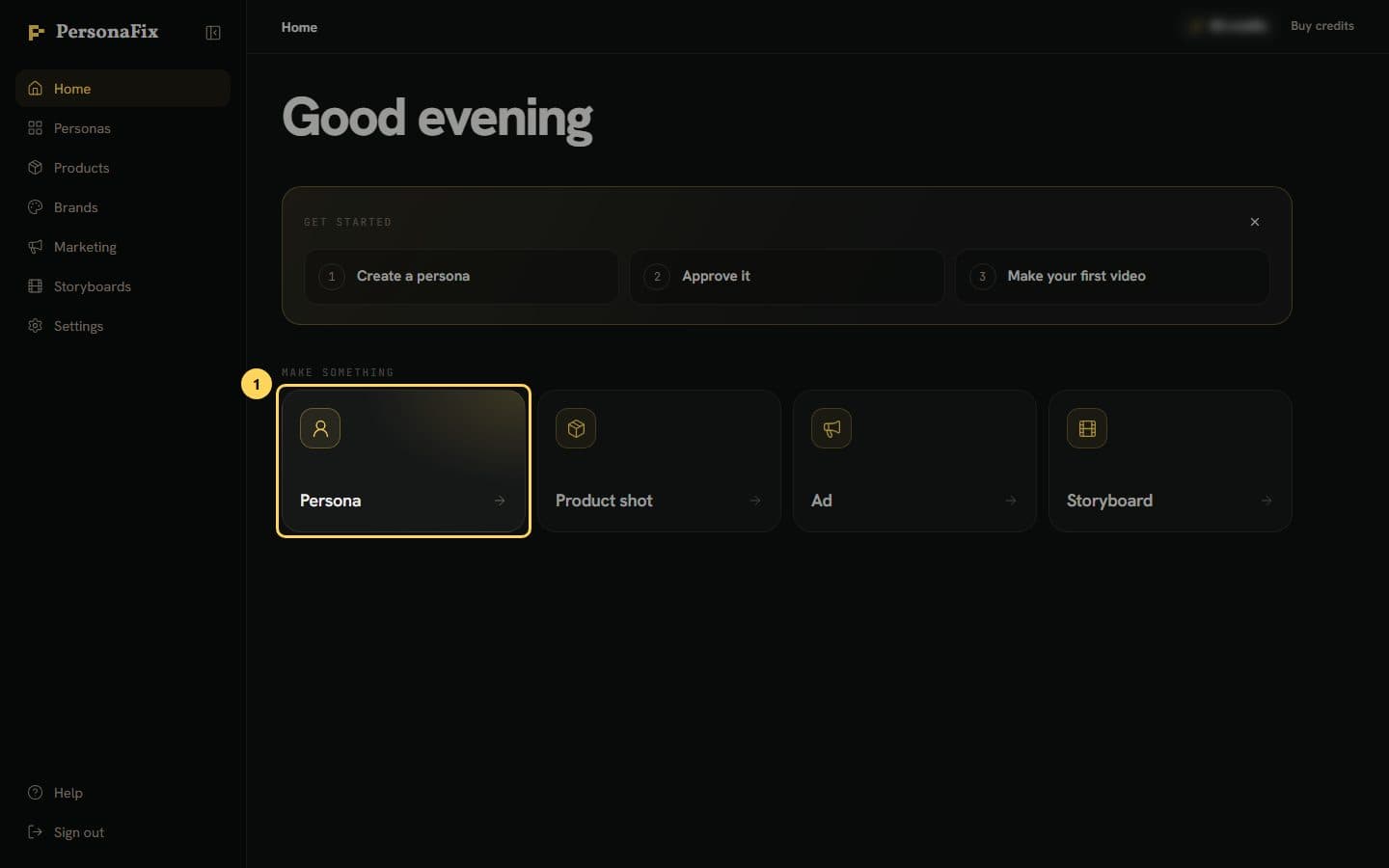 How to Create an AI Actor With a Consistent Face and VoiceName a persona, describe them, and get six matching photos and a voice.
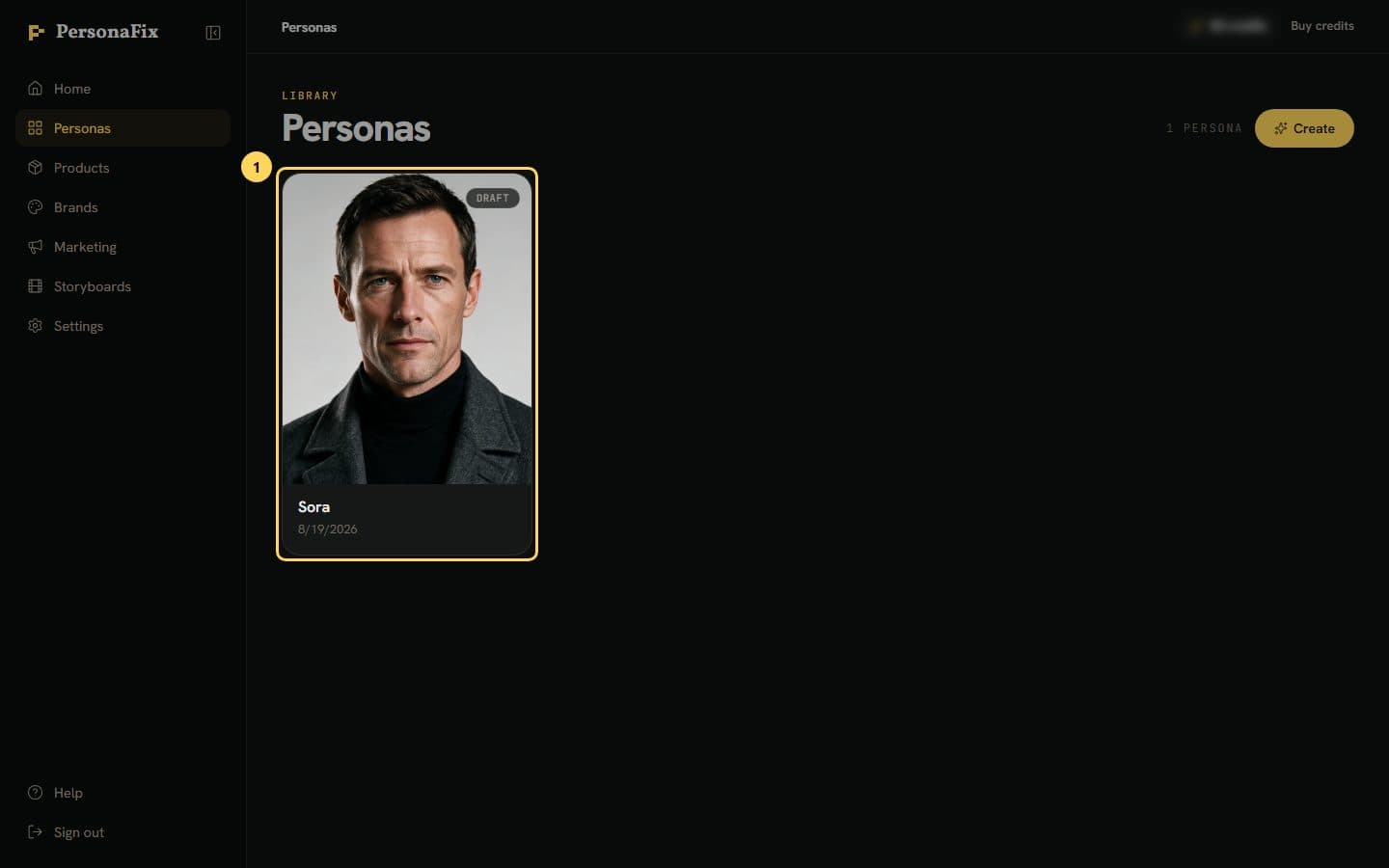 How to Edit and Approve Your AI ActorChange your actor by chat, re-shoot the photos, and approve them for videos.
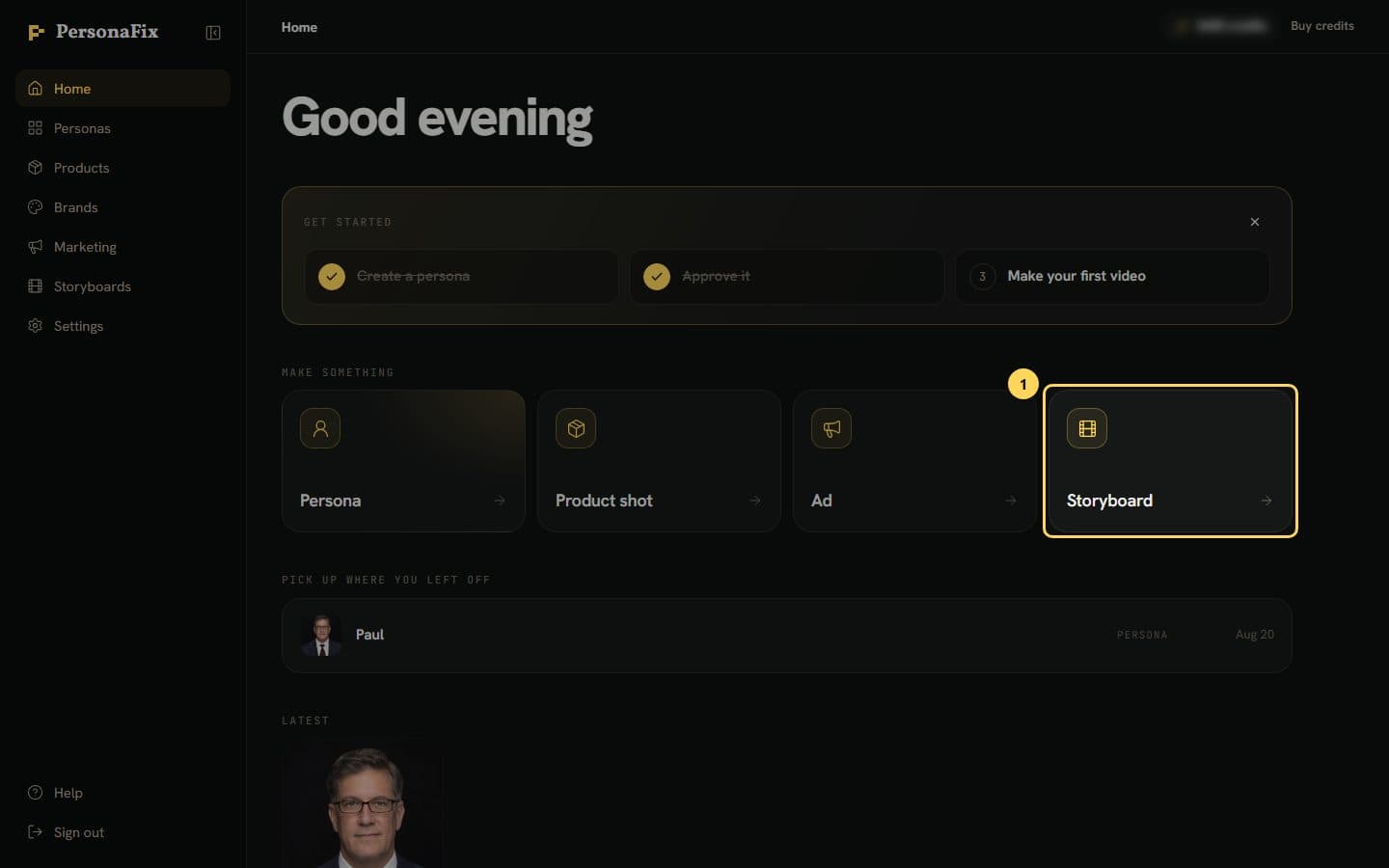 How to Make an AI Video With Your Own AI ActorPlan scenes with the chat, cast your actor and product, and film a finished video.
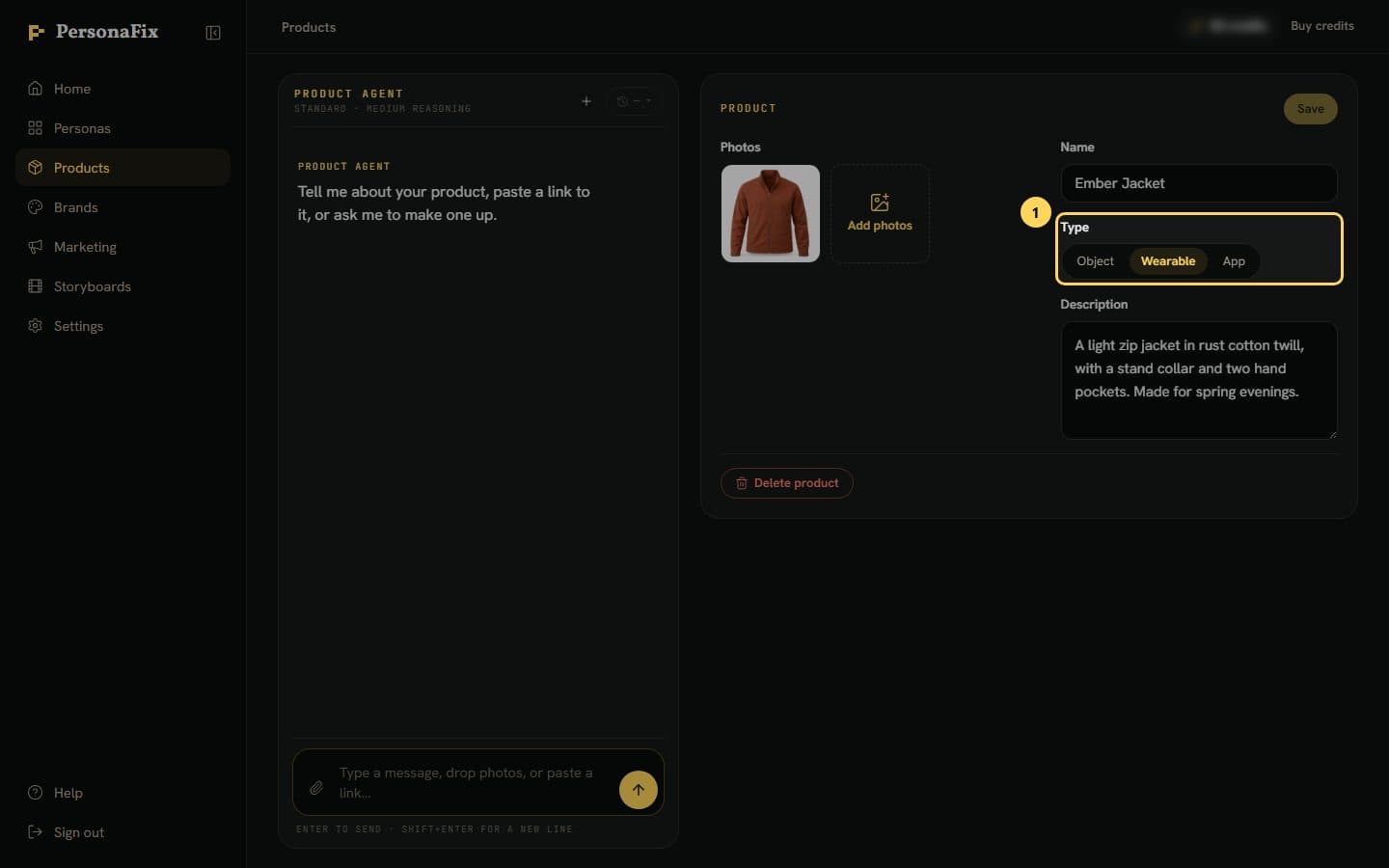 How to Put Your Product in an AI Video: Props and OutfitsSay what each item does, prepare its pictures on one card, check any new look, then film.
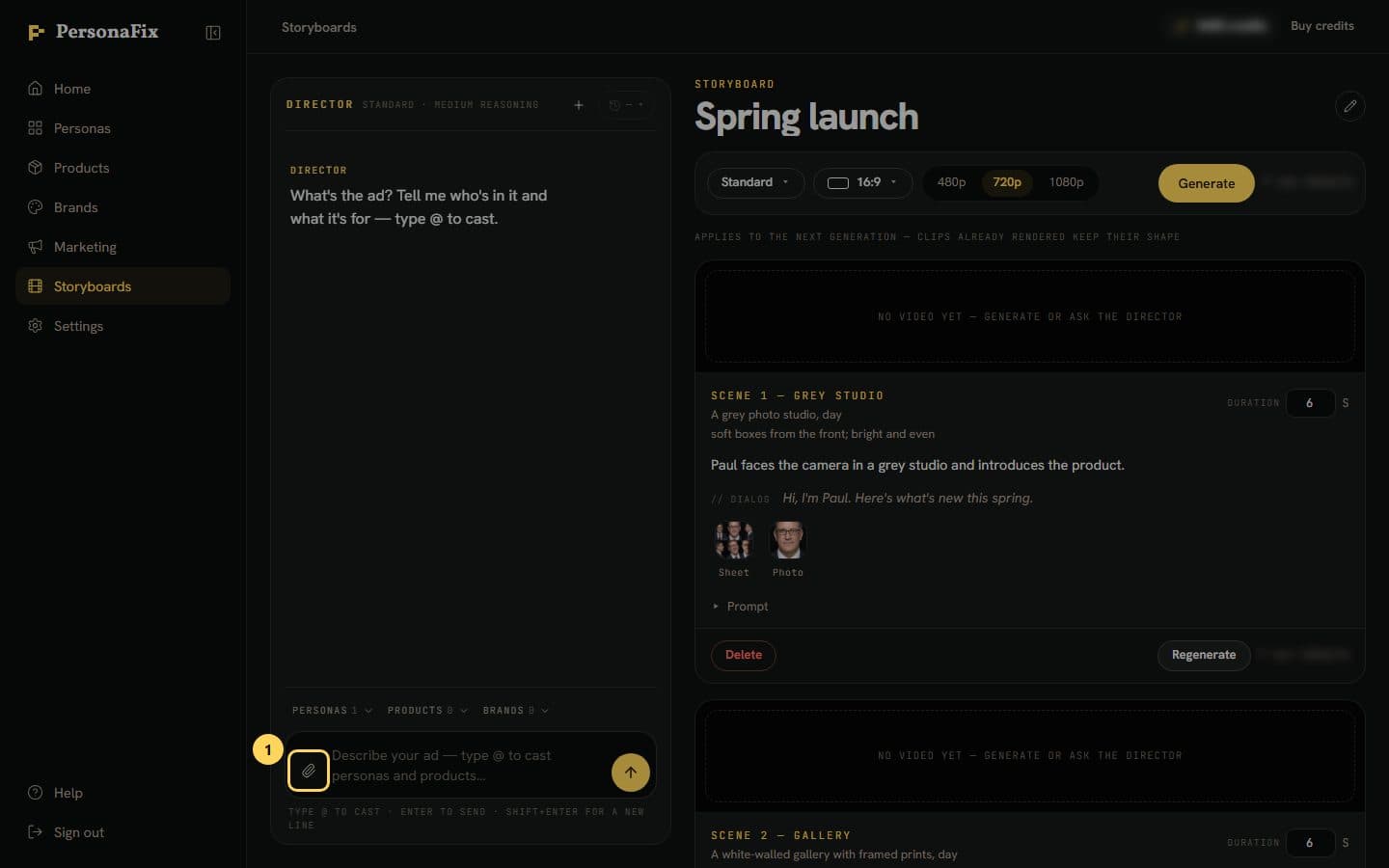 How to Use Your Own Photos and Clips in an AI VideoAttach photos and clips in the chat, say what each is for, and see how each was used.
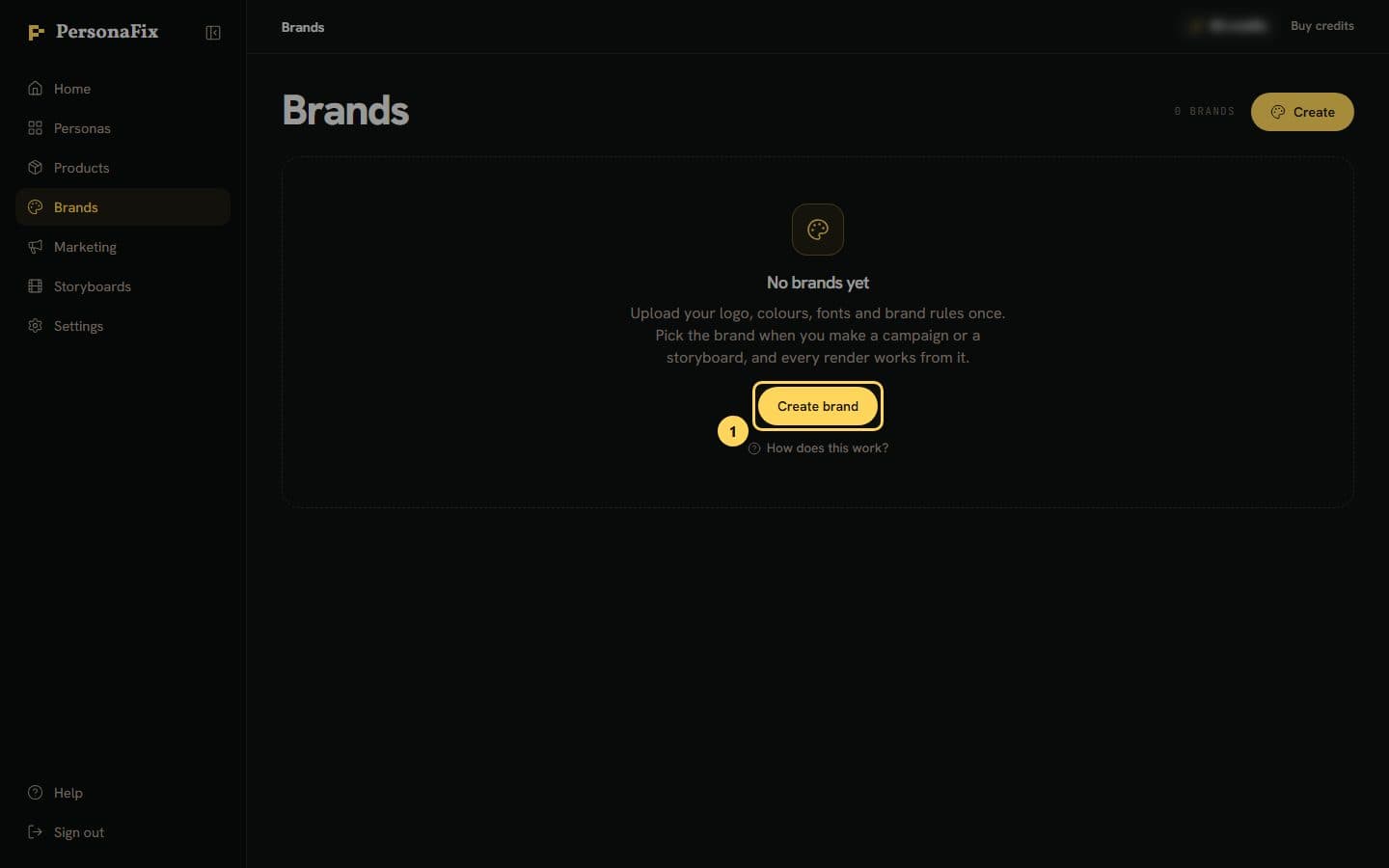 How to Set Up Your Brand Kit for AI Marketing ContentDrop in your deck, logos or website link, send, and let the brand agent fill in the card.
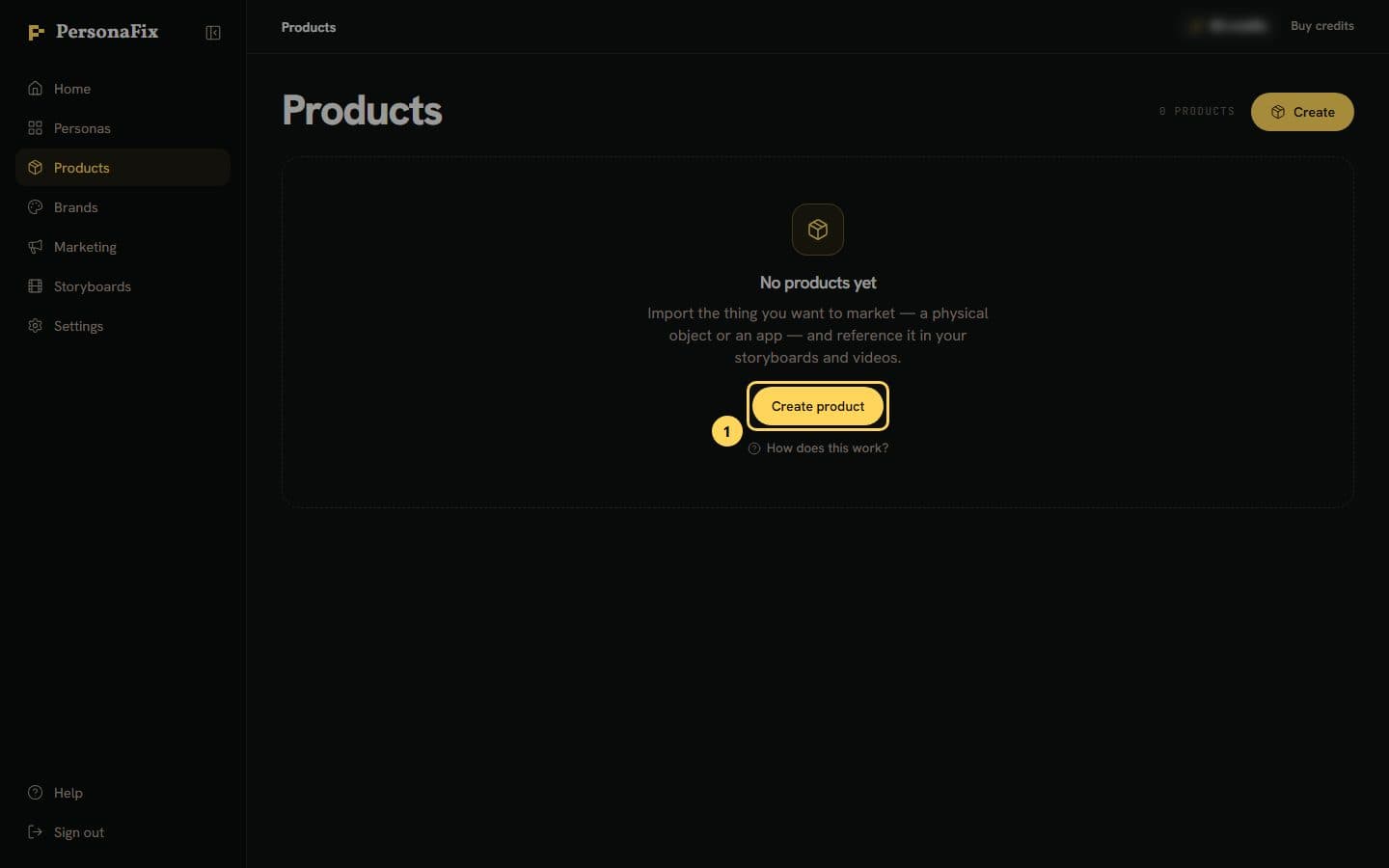 How to Add a Product for AI Product PhotosPick the type, upload a few photos, best one first, name it, and it is ready to cast.
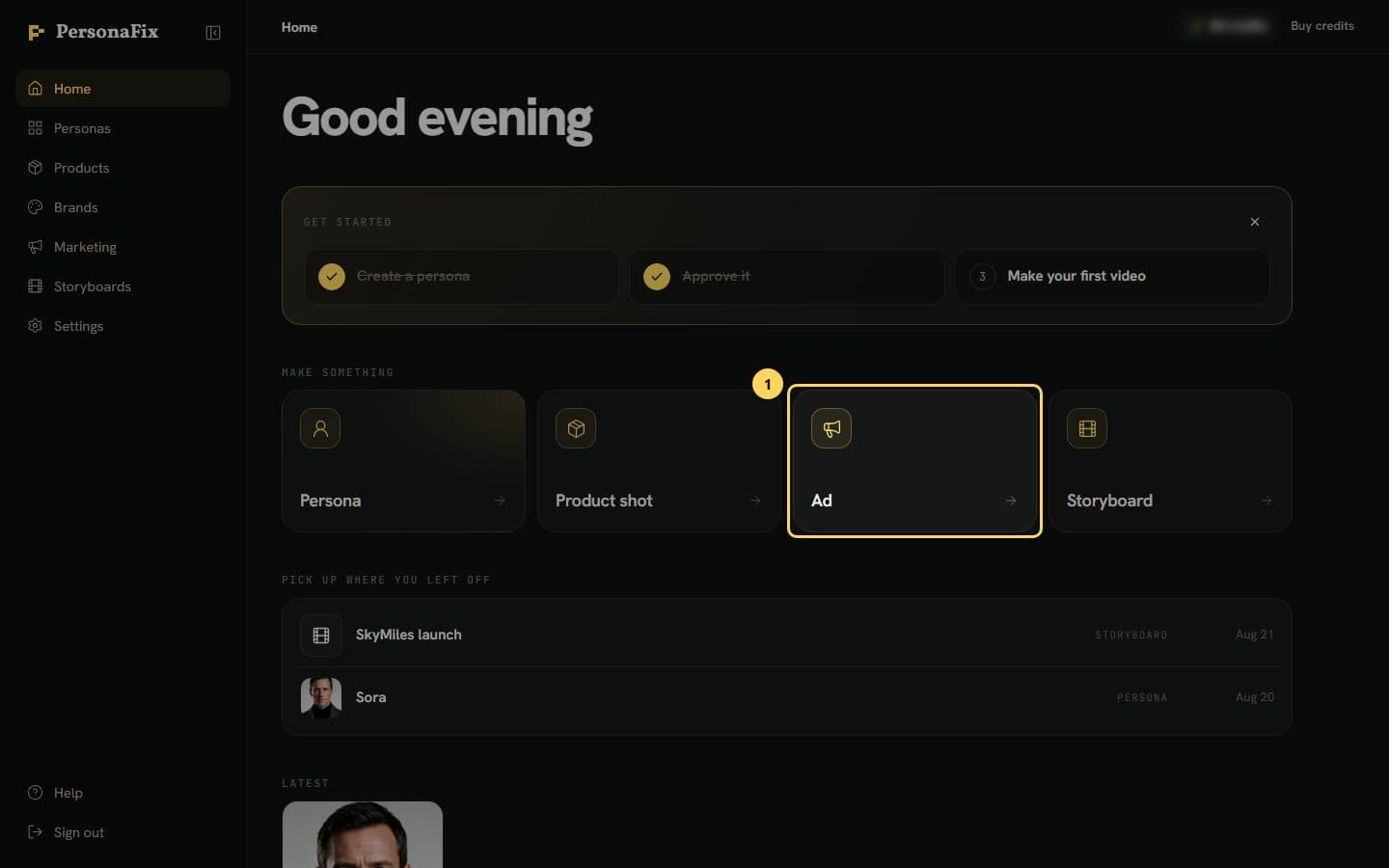 How to Make an AI Ad With Your Actor, Product and BrandBrief the Art Director, cast with @, check the price, and render.
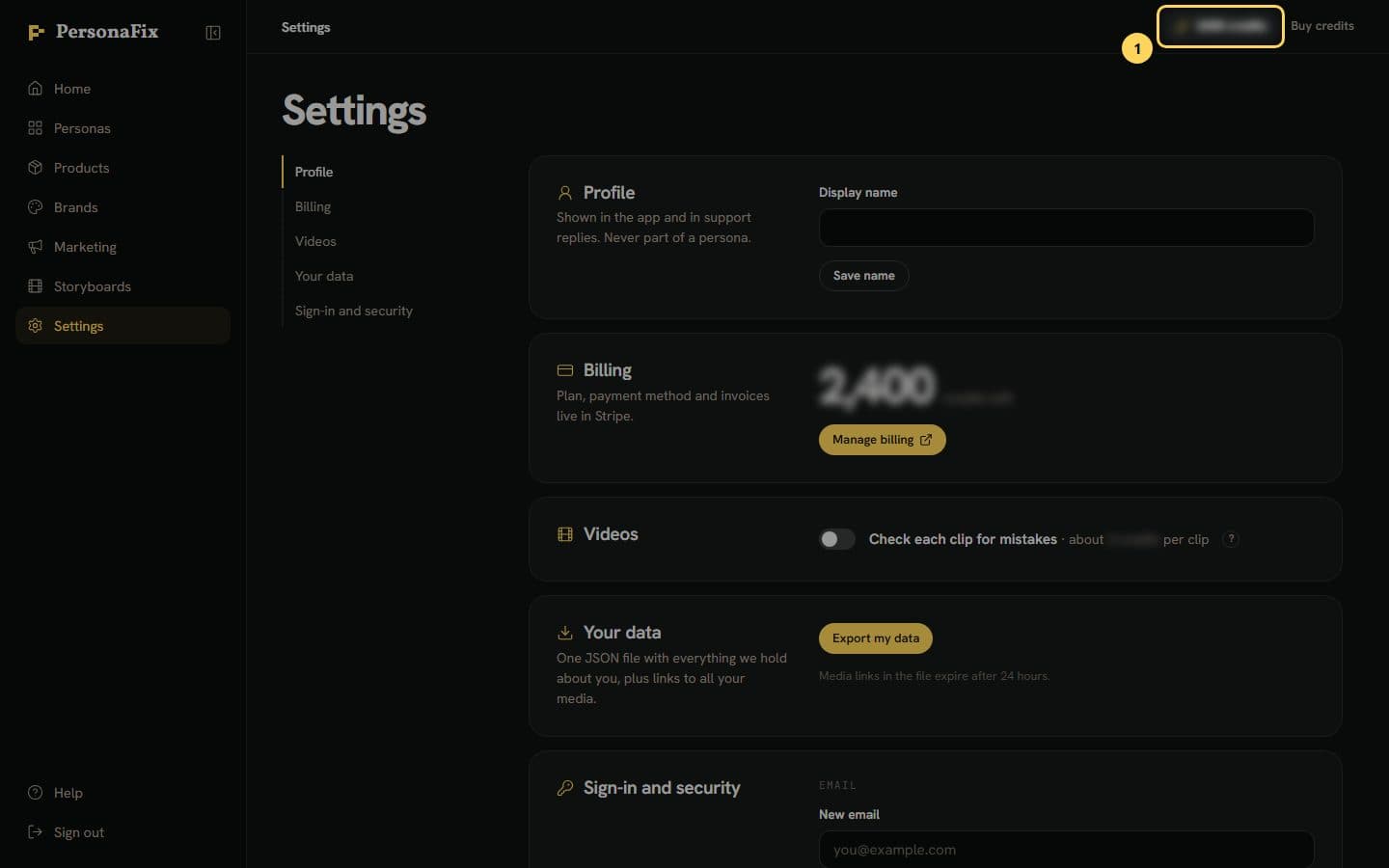 How Credits Work: See the Cost Before You CreateWhere your balance lives, how prices show, and what happens when work fails.
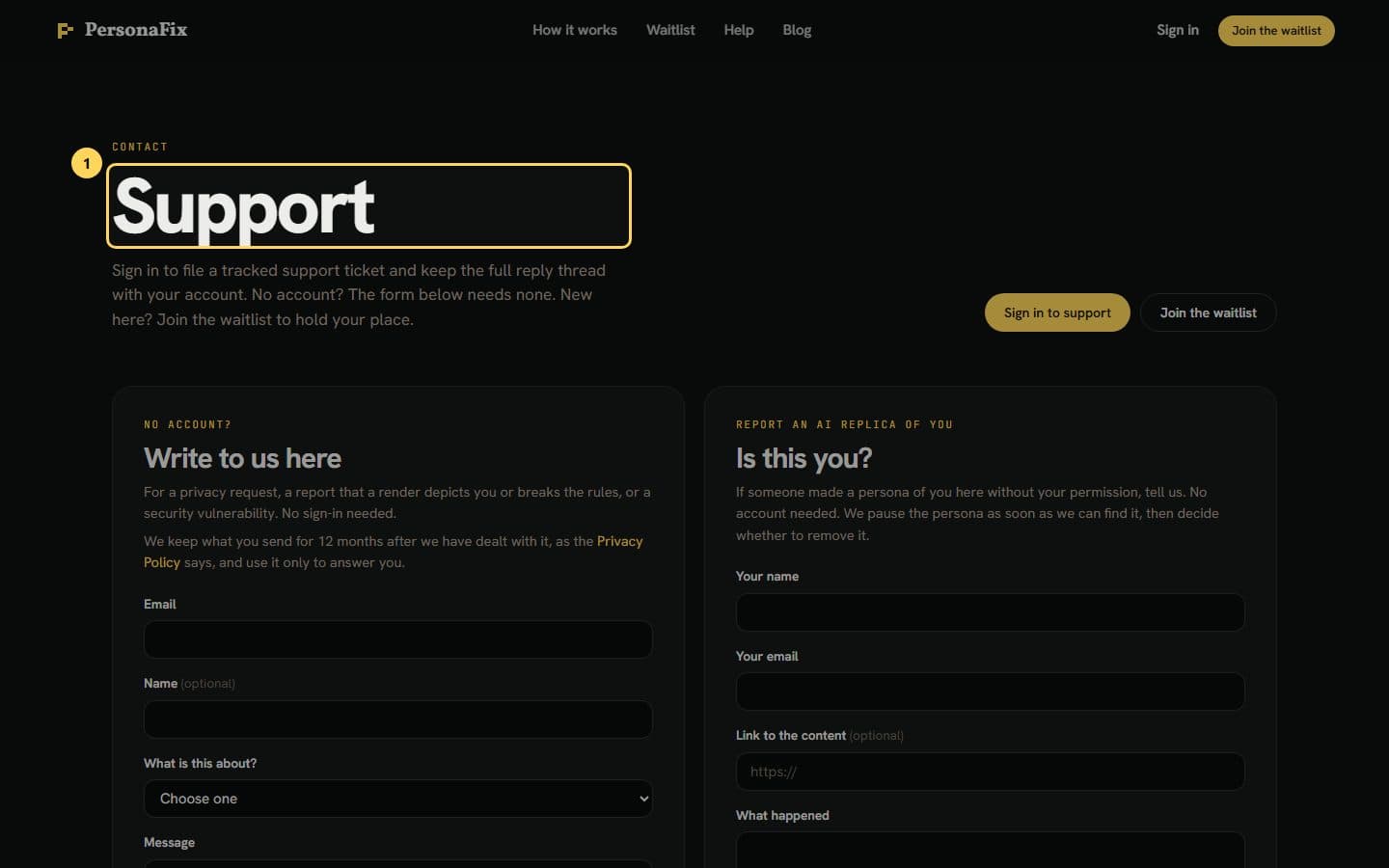 How to Contact PersonaFix SupportUse the public form, or sign in for a tracked ticket.
Before you start
Quick tips for better results
Describe them like a casting brief
Write who the person is in plain words: age, look, style, attitude. You never need prompt tricks or special syntax.
Read the guideApprove before you cast
An actor can star in a video once you approve their photos and voice. Approving is free.
Read the guideCheck the price on the button
Photo, voice, video and ad buttons, and the chat's priced cards, show their cost first. The chat never starts paid work by itself. Messages are charged after each reply.
Read the guideLeave the tab while it renders
Rendering and preparing pictures happen on our servers, not in your browser. Close the tab or switch away. The page shows the latest progress when you come back.
Read the guidePut all your changes in one edit
Most changes re-shoot most of the six photos. Asking for them together re-shoots each photo once, so it costs less than several separate edits.
Read the guideGive the brand everything you have
Drop in a PowerPoint or PDF deck, logos, a zip or a link. The brand setup sorts the files and fills in the brand card for you.
Read the guideSay what happens to each item
When you plan a video, name the format, like UGC. Say what is worn, taken off, held or set down. It helps stop props doubling or vanishing.
Read the guideLet a check watch each clip
When Settings shows it, turn on Check each clip for mistakes. It flags doubled or vanishing items, with a priced redo. The price per clip shows beside the switch.
Read the guide
Want the longer version? Read the PersonaFix blog for in-depth tips on AI actors, AI video and on-brand content.