How to Set Up Your Brand Kit for AI Marketing Content
To set up a brand kit, open Brands, press Create brand, and drop in whatever you already have: a deck, a PDF, a Word doc, logos, fonts, a zip or a link to your site. Send it, and the brand agent reads it and fills in the brand card for you. Every ad you make with that brand then works from the same colors, type and rules.
6 stepsUpdated
Screenshots show an example account. Prices are blurred because the example numbers are not real prices.
Step 1: Create a brand
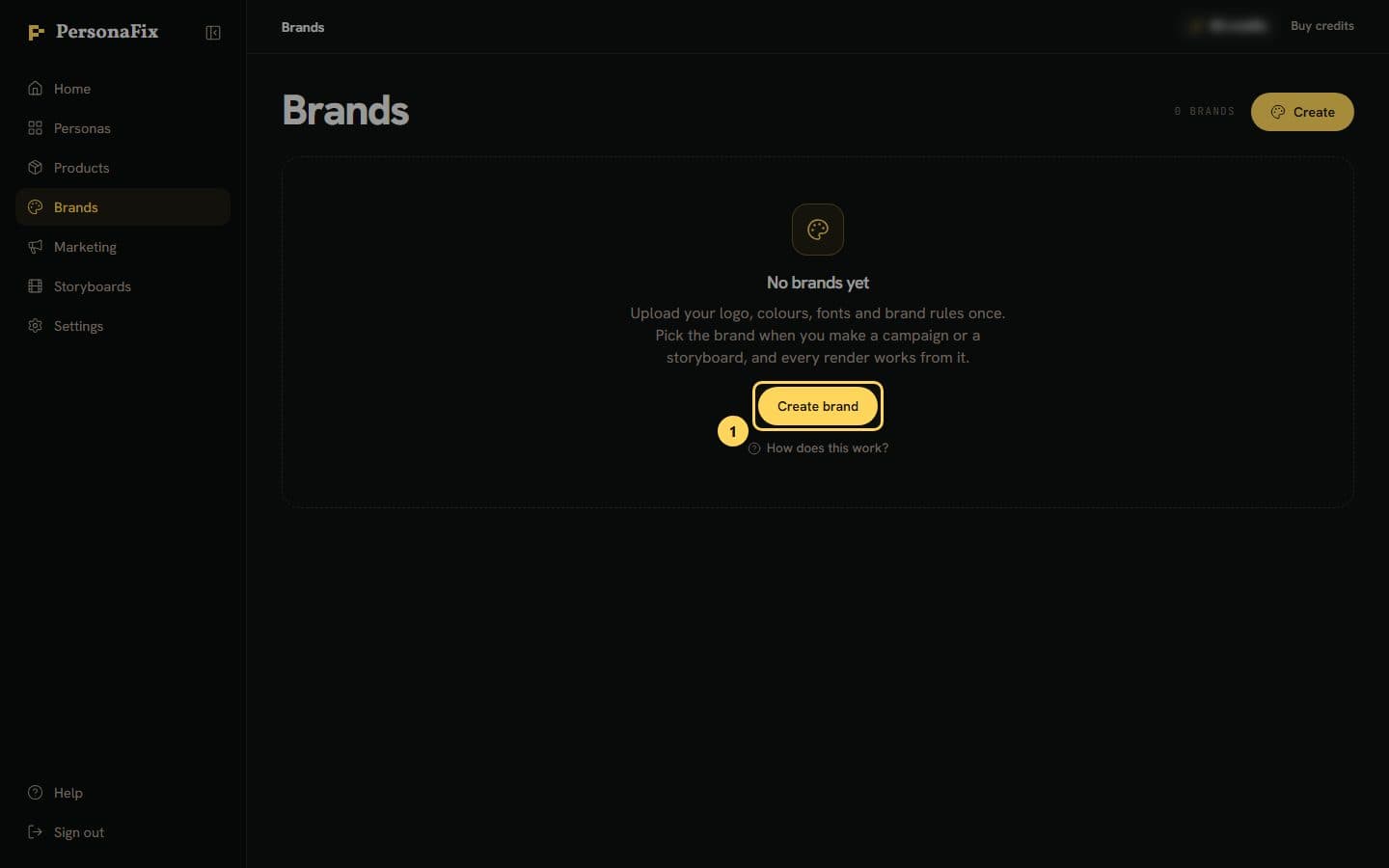
Open Brands in the sidebar and press Create brand (just Create if you already have a brand). The new brand opens straight away, with no name needed.
Step 2: Drop in what you have
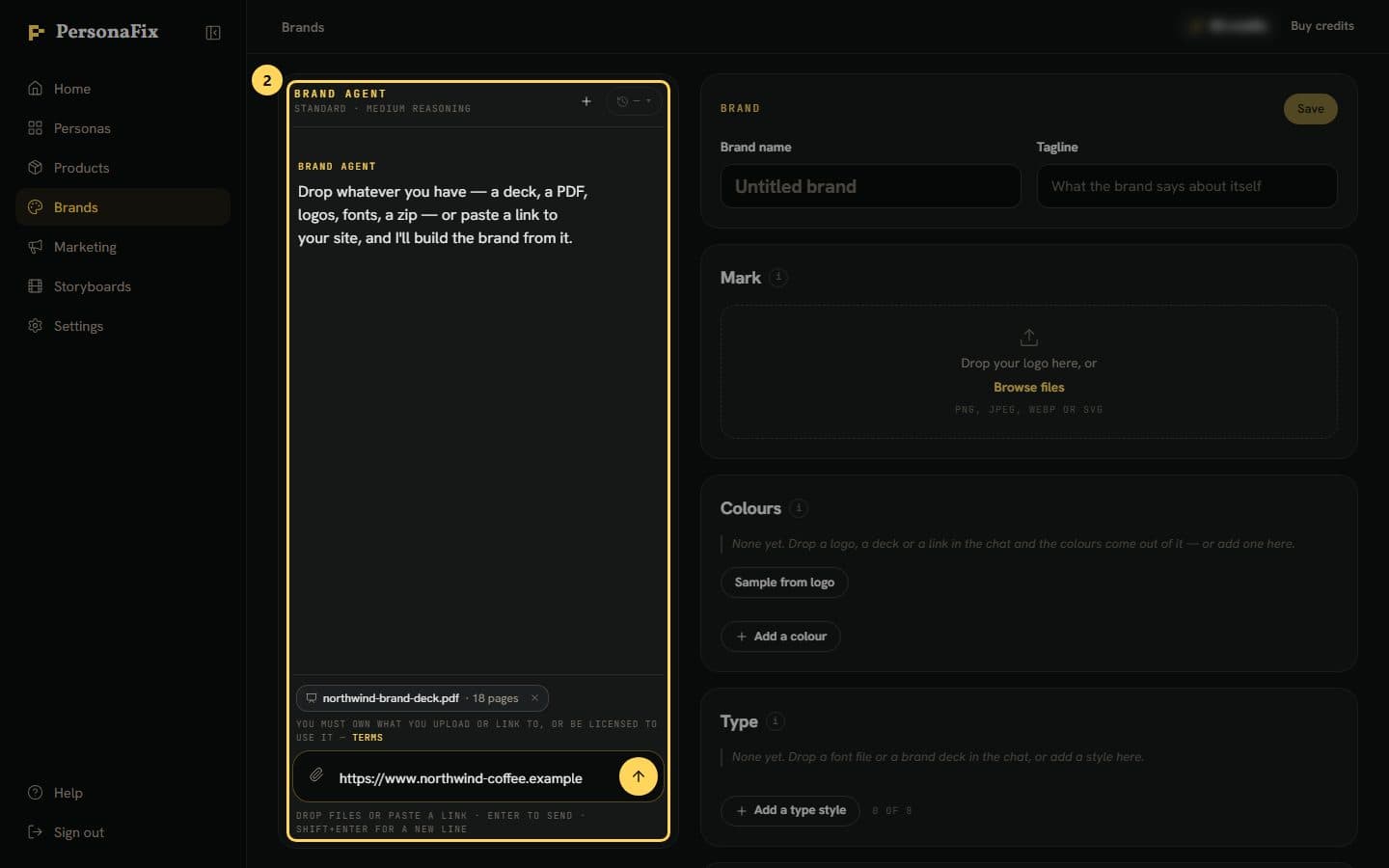
Drag files onto the brand agent's chat, use the paperclip, or paste a link to your site. Decks, PDFs, Word docs, logos, fonts and zips all work.
Step 3: Send it to the agent
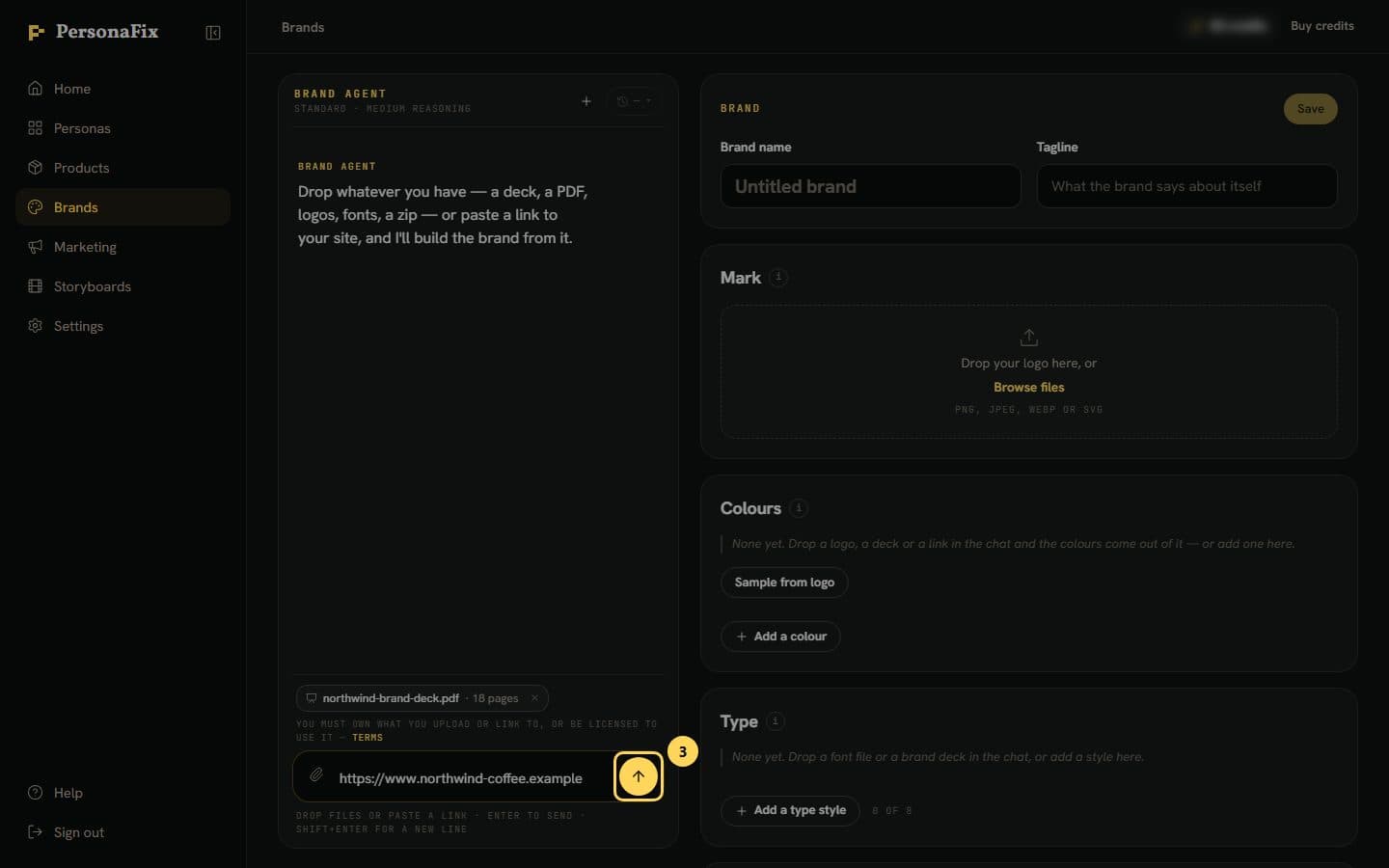
Press Enter or the send button. The agent fills in the brand card only after you send.
Step 4: Watch the brand card fill in
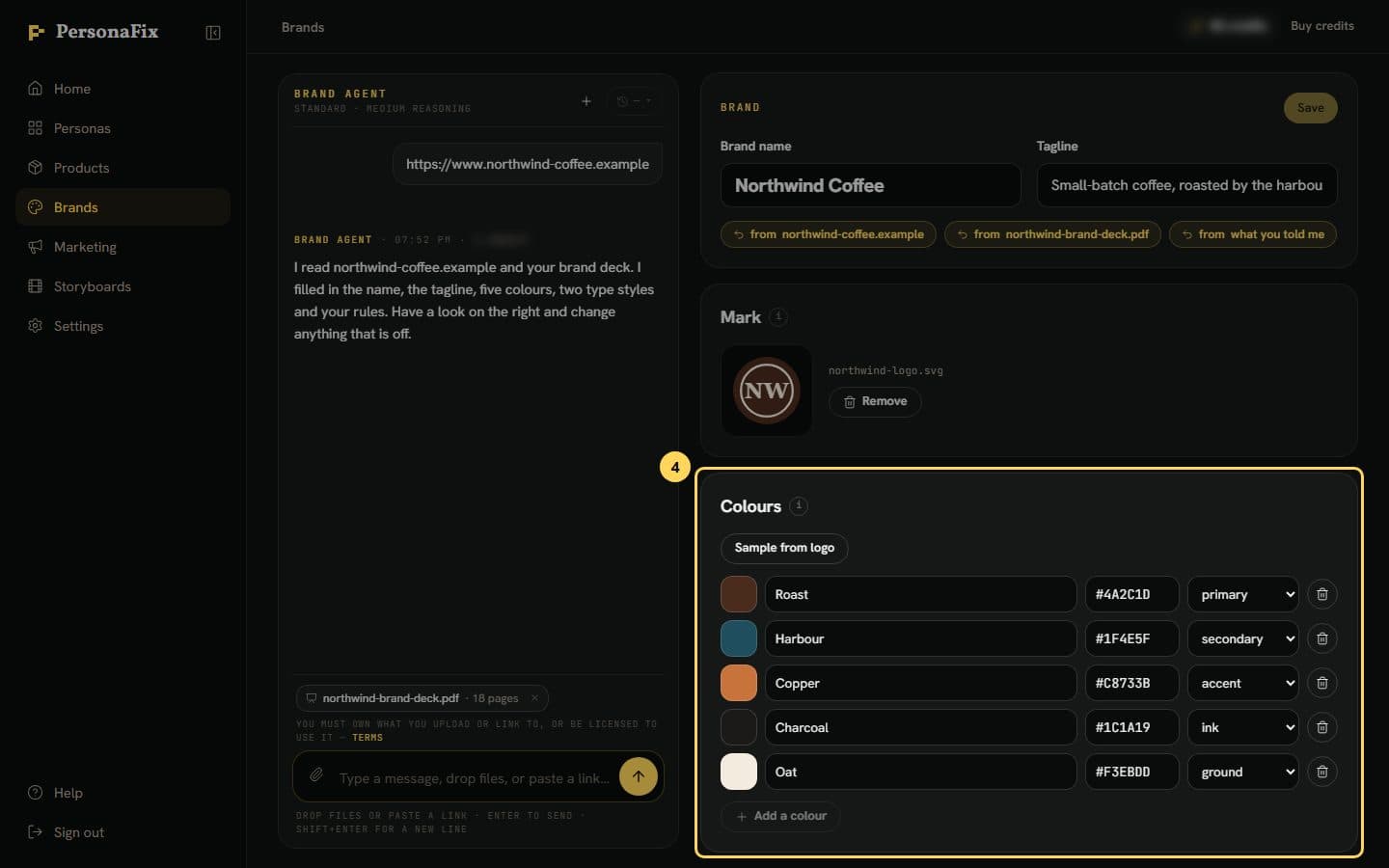
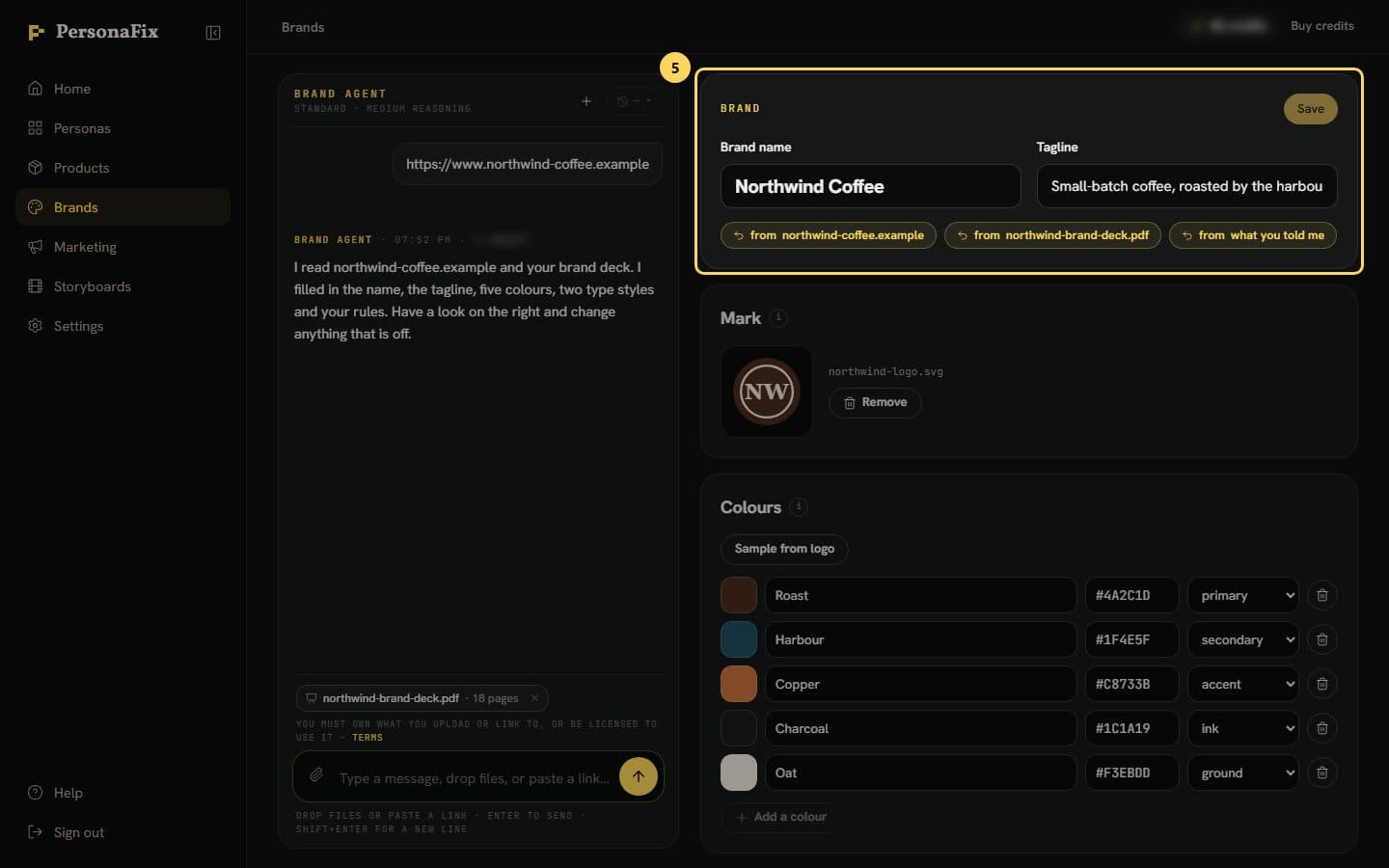
The agent writes what it finds into the card on the right. The card has Brand name, Tagline, Mark (your logo), Colours, Type, Rules and Past ads.
Step 5: Check where each field came from
The name, tagline, Colours, Type and Rules each get a chip. It names a file, a link, or "what you told me". The logo and past ads get none.
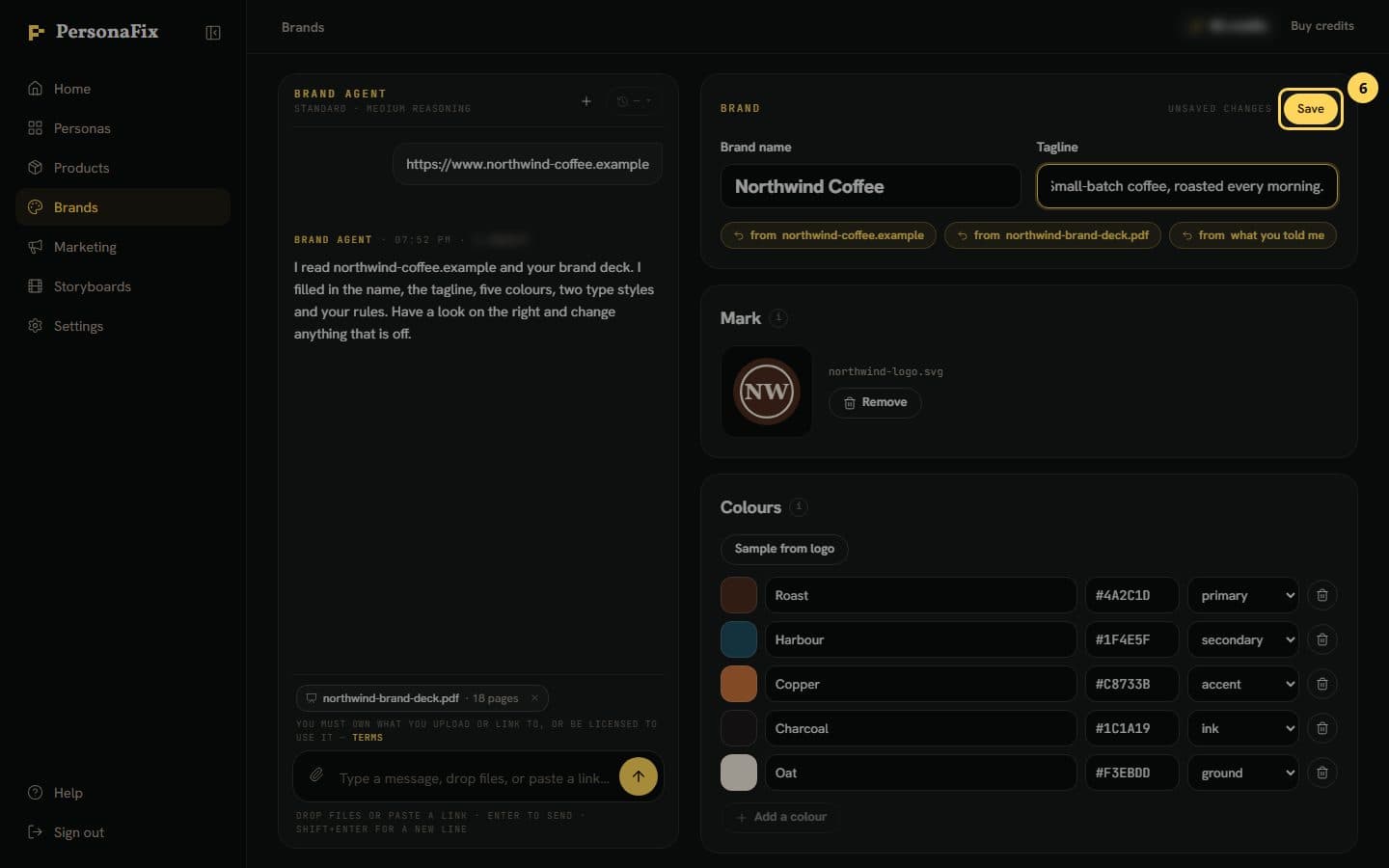
Step 6: Fix anything by hand, then save
Type over any field you want to change. The card says it has unsaved changes until you press Save.
If something goes wrong
- A field was filled from the wrong file.
- Click the chip beside that field. It puts back what was there before the agent wrote it. It also removes any edit you made to that field since.
- The agent did not find my colors.
- Drop in a logo or a deck that shows them. Or press Sample from logo or Add a colour on the card, then press Save.
- My file was refused.
- The agent reads PowerPoint or PDF decks, Word docs, logo images (PNG, JPEG, WebP, SVG), font files, zips, text, Markdown and HTML files, and website links. Keynote files and Google Slides links are refused. Export them as PDF first.
- The message box is greyed out.
- Your balance is too low. Each agent turn spends chat credits. Credits refill at the start of each billing period. If you need more before then, contact support.
- My logo looks slightly different in renders.
- Your logo is redrawn from the picture you give, so it comes out close but not pixel-exact. A clean, high-contrast logo file works best.
Still stuck? Contact support.