How to Add a Product for AI Product Photos
To add a product, open Products, press Create, and upload photos of it from a few angles, your best front shot first. For clothes, pick Wearable and upload a photo of the whole outfit. Give it a name and a short description, then press Create product. It is saved to your library, ready to cast in ads and videos.
5 stepsUpdated
Screenshots show an example account. Prices are blurred because the example numbers are not real prices.
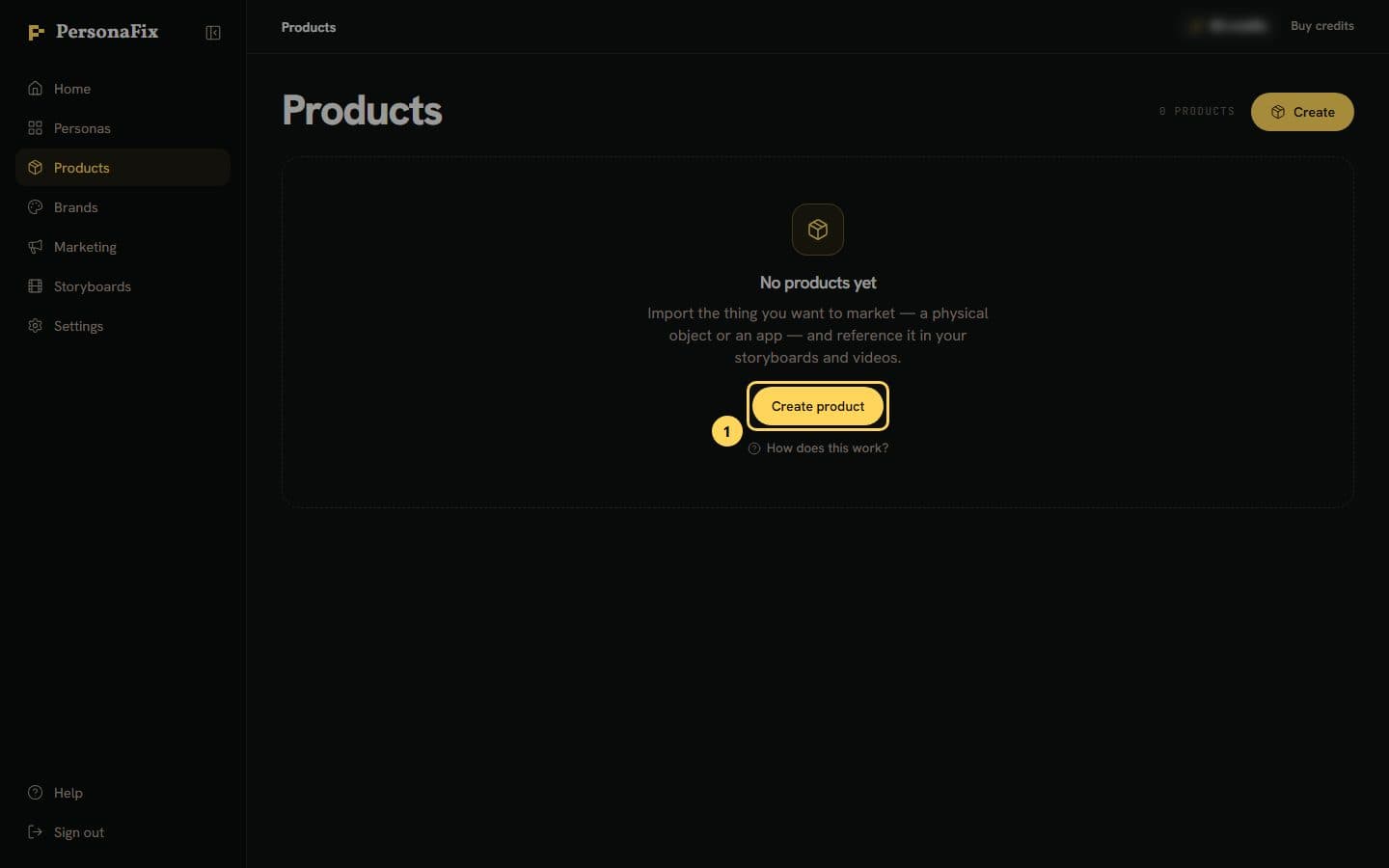
Step 1: Start a new product
Open Products in the sidebar and press Create (or Create product when the library is empty). The Product shot button on the home screen opens the same page.
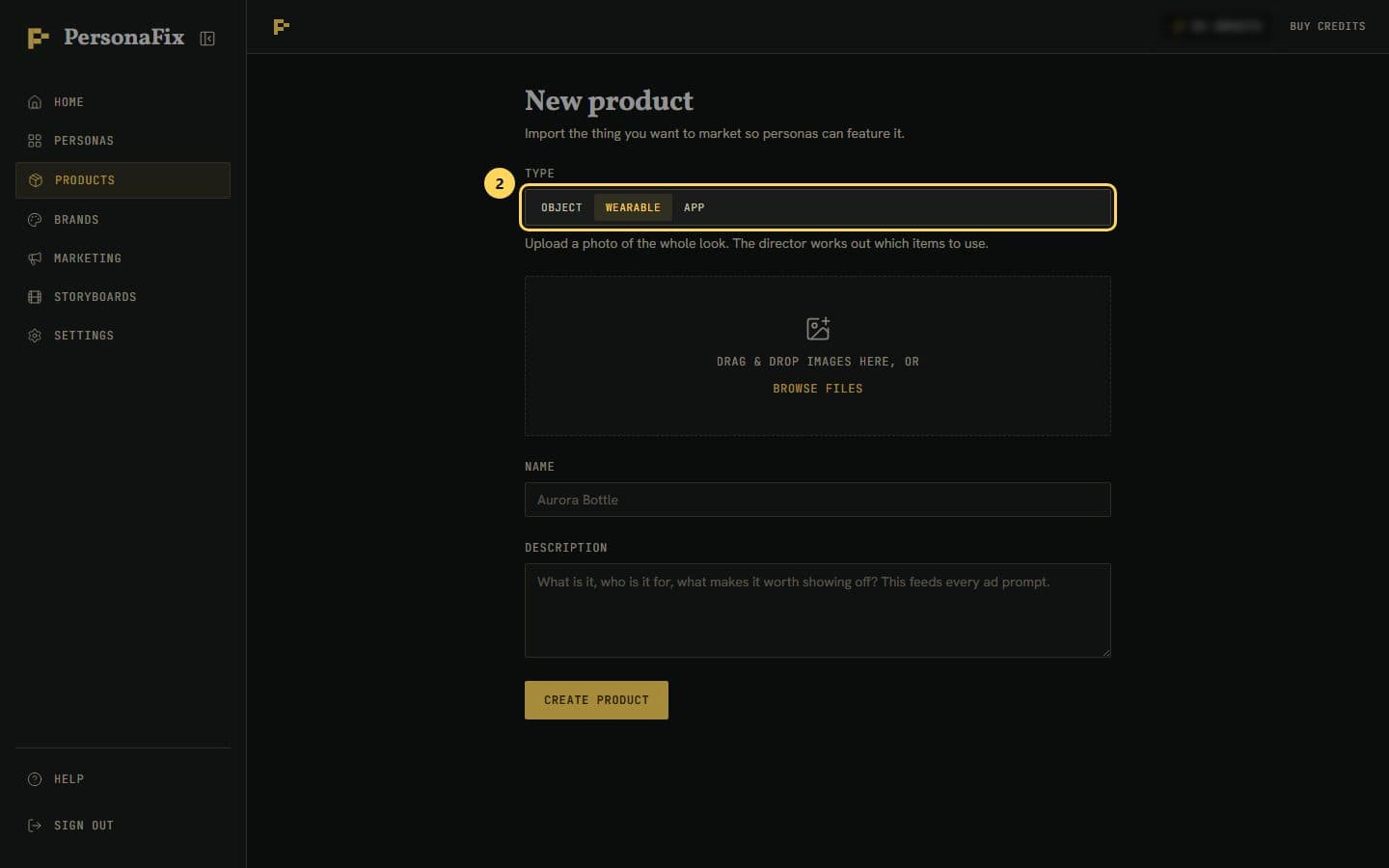
Step 2: Pick Object, Wearable or App
Object is for things, like the bottle in the next steps. Wearable is for clothes, shoes or glasses. One photo of the whole outfit works. App is for phone screenshots.
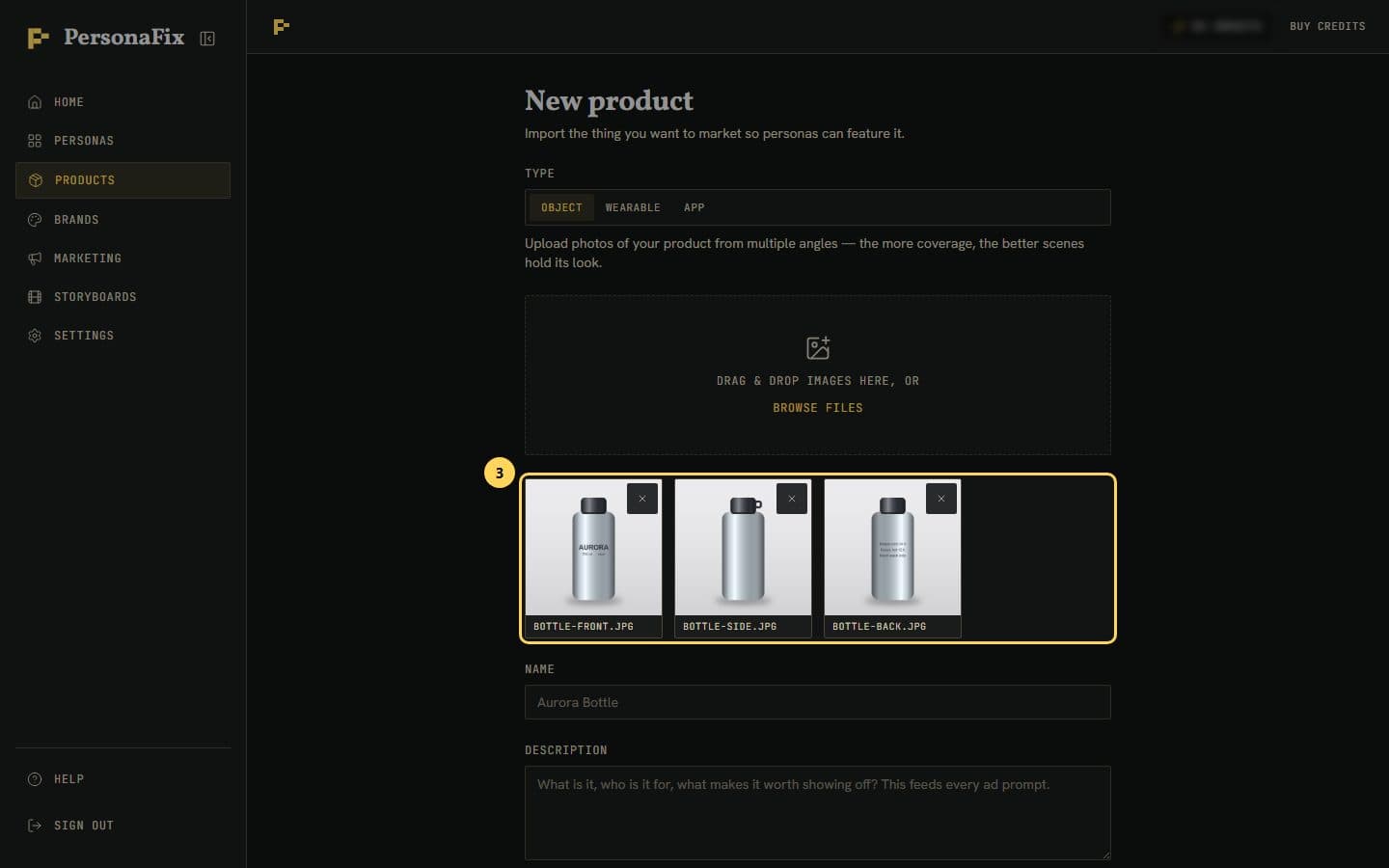
Step 3: Add photos, best one first
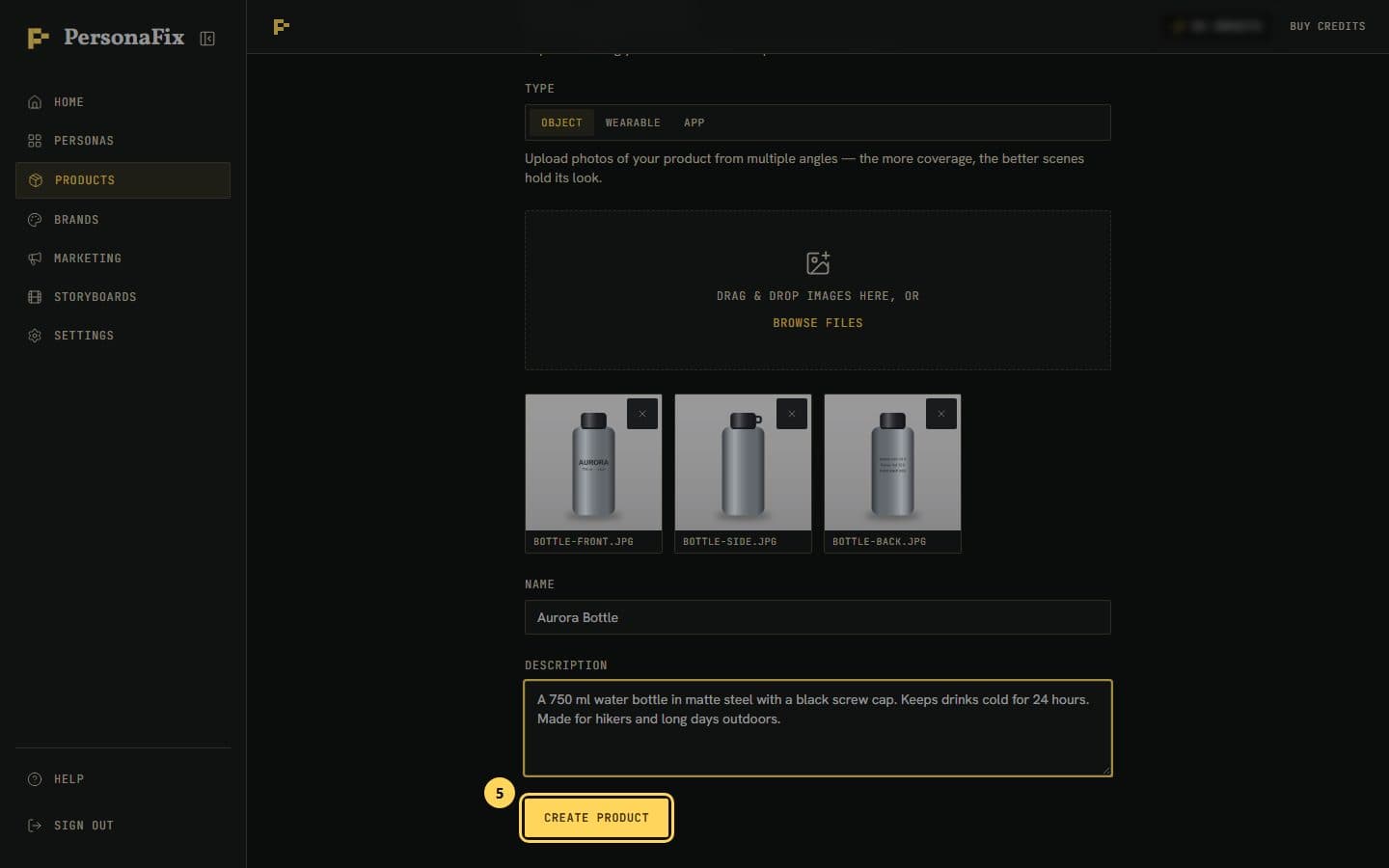
Drag photos onto the box, or press Browse files. Upload your clearest front shot first, because the first photo matters most. More angles help too.
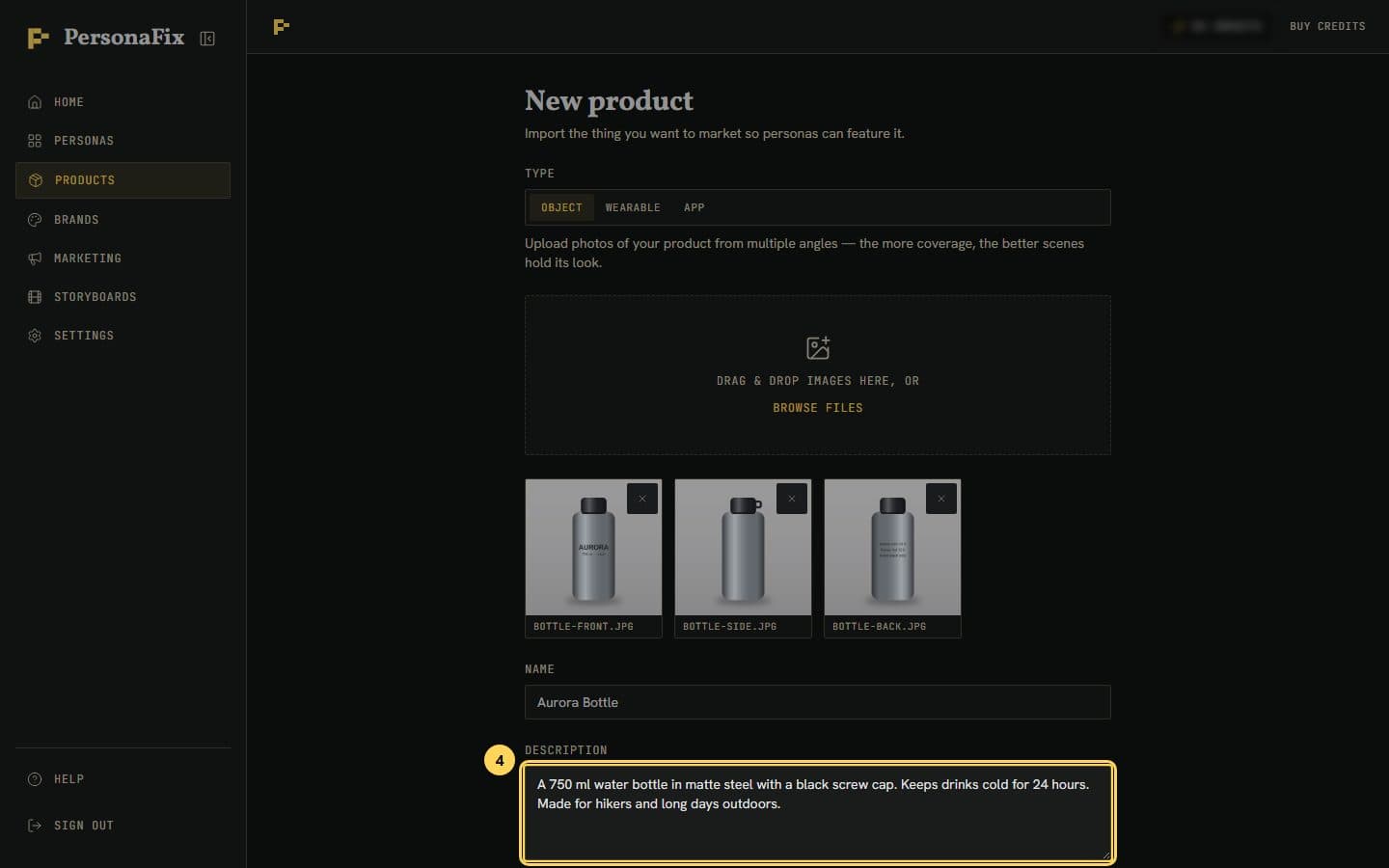
Step 4: Name it and describe it
Give the product a name. Then say what it is, who it is for and what makes it worth showing. The description feeds every ad.
Step 5: Save it to your library
Press Create product. The photos upload, then you land back in Products. When you make an ad or a storyboard, type @ in the chat to cast it.
If something goes wrong
- Why does the first photo matter most?
- Photos are used in the order you uploaded them. When a video scene or an ad has more pictures than it can take, the last photos are left out first. Put the hero shot first.
- My product photo shows a model.
- That is fine. The model's head is covered before the photo is used, so their face does not carry over. Glasses, hats and earrings on that head are covered too. Add a photo of those on their own: an ad needs it, and it helps a video.
- My actor wore the whole outfit, but I only sell the jacket.
- Everything in the photo is worn as shown unless you say otherwise. Tell the chat which items to use, like only the jacket, and it changes the plan.
- Create product shows an error.
- The name and the description are both required. If the error names a photo, the product was saved without it. Open Products and check before pressing Create product again.
- A photo showed in the form but failed at Create.
- Use PNG, JPEG or WebP photos. iPhone HEIC photos and GIFs are not accepted, so export them as JPEG first.
- The product looks off in a render.
- Clear photos from the front, side and back give it more to work from. Write the description the way you would brief a photographer.
Still stuck? Contact support.