How to Put Your Product in an AI Video: Props and Outfits
To put your product in an AI video, cast your actor and your product in a storyboard, and tell the chat what happens to each item. The chat plans each item's role. When a scene needs a new outfit, a prop or a background, it offers one priced card, Pictures before filming. Press it. If it makes a new look of your actor, you check it first, then film with a second press.
8 stepsUpdated
Screenshots show an example account. Prices are blurred because the example numbers are not real prices.
Step 1: Add your product
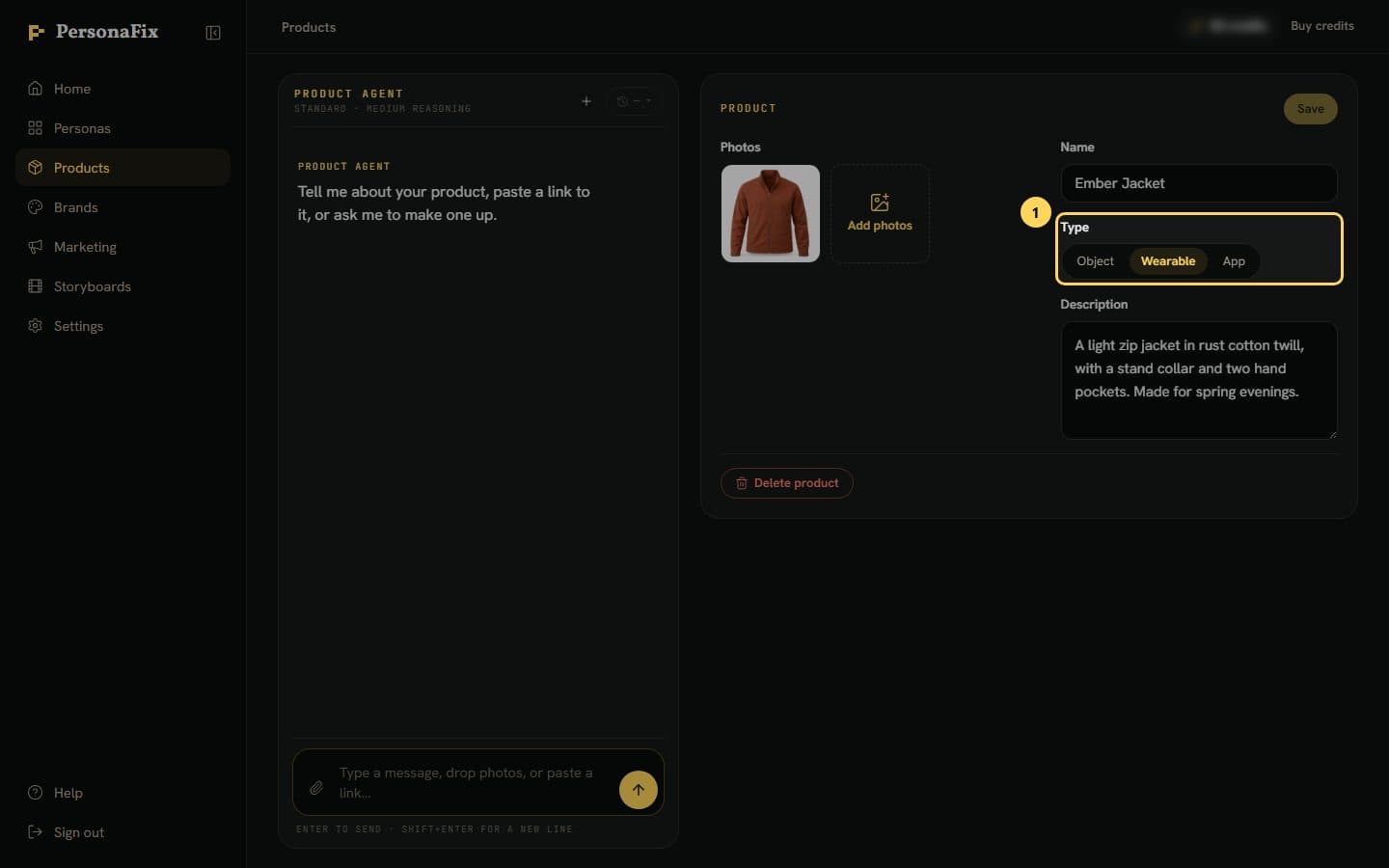
In Products, pick Wearable for clothes and upload one photo of the whole outfit. Pick Object for a thing, like a bottle. The chat works out the items.
Step 2: Cast your actor and product
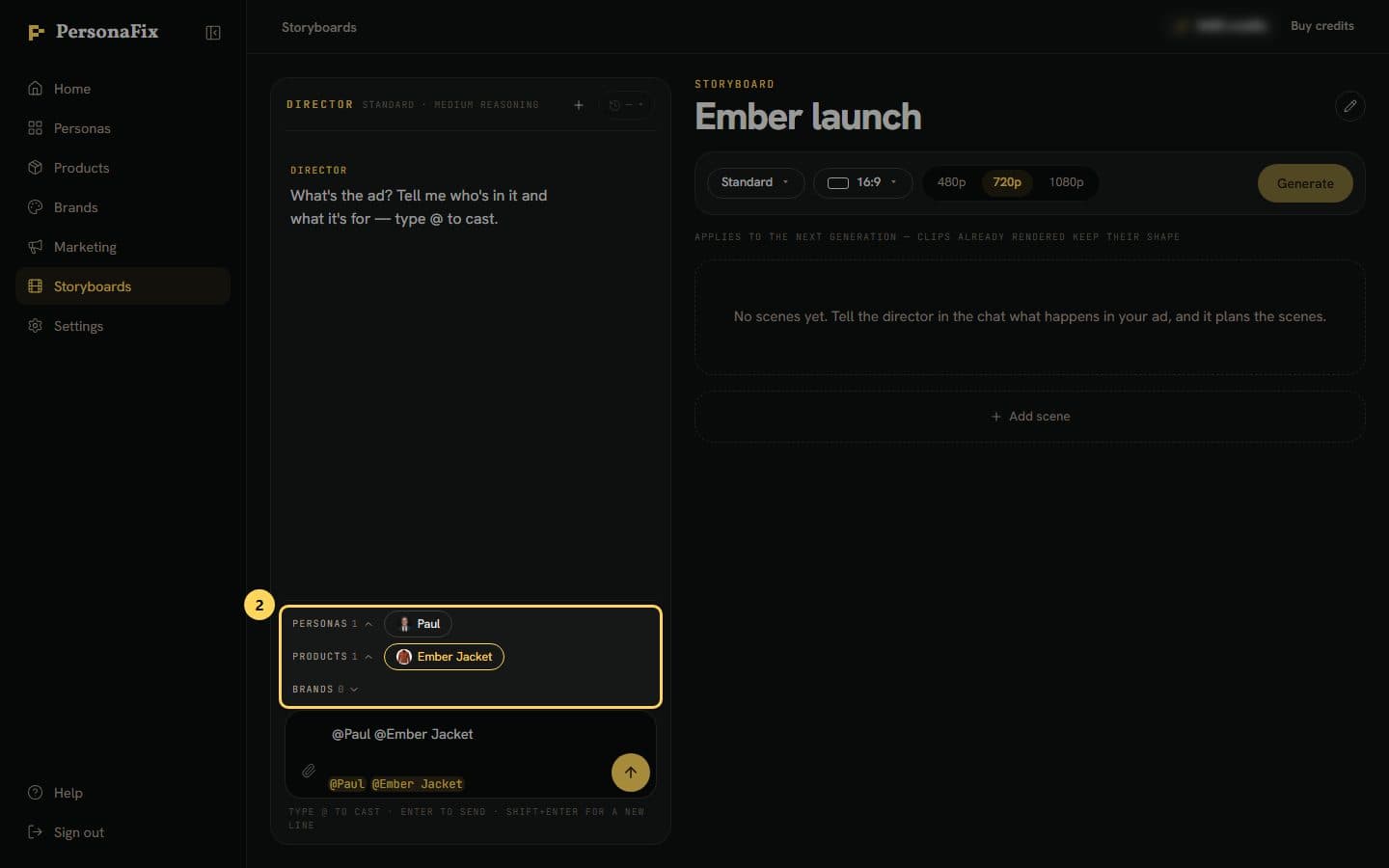
Open a storyboard. In its chat, open Personas above the message box and press your actor. Do the same under Products, or type @ and pick them.
Step 3: Say what happens to each item
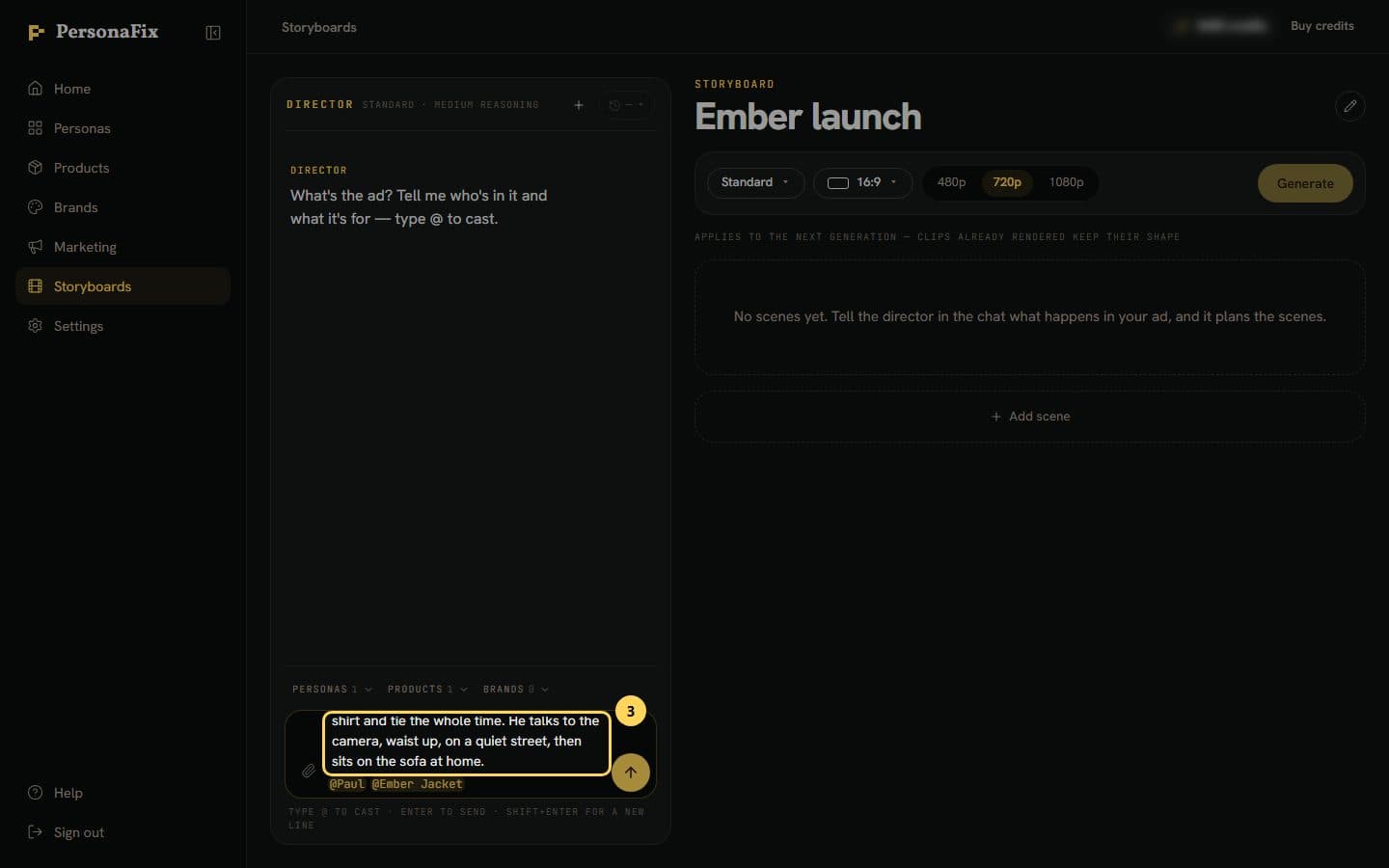
Say what is worn, taken off, held or set down, and where each item ends up. Ask only for the changes you want.
Step 4: Read the plan
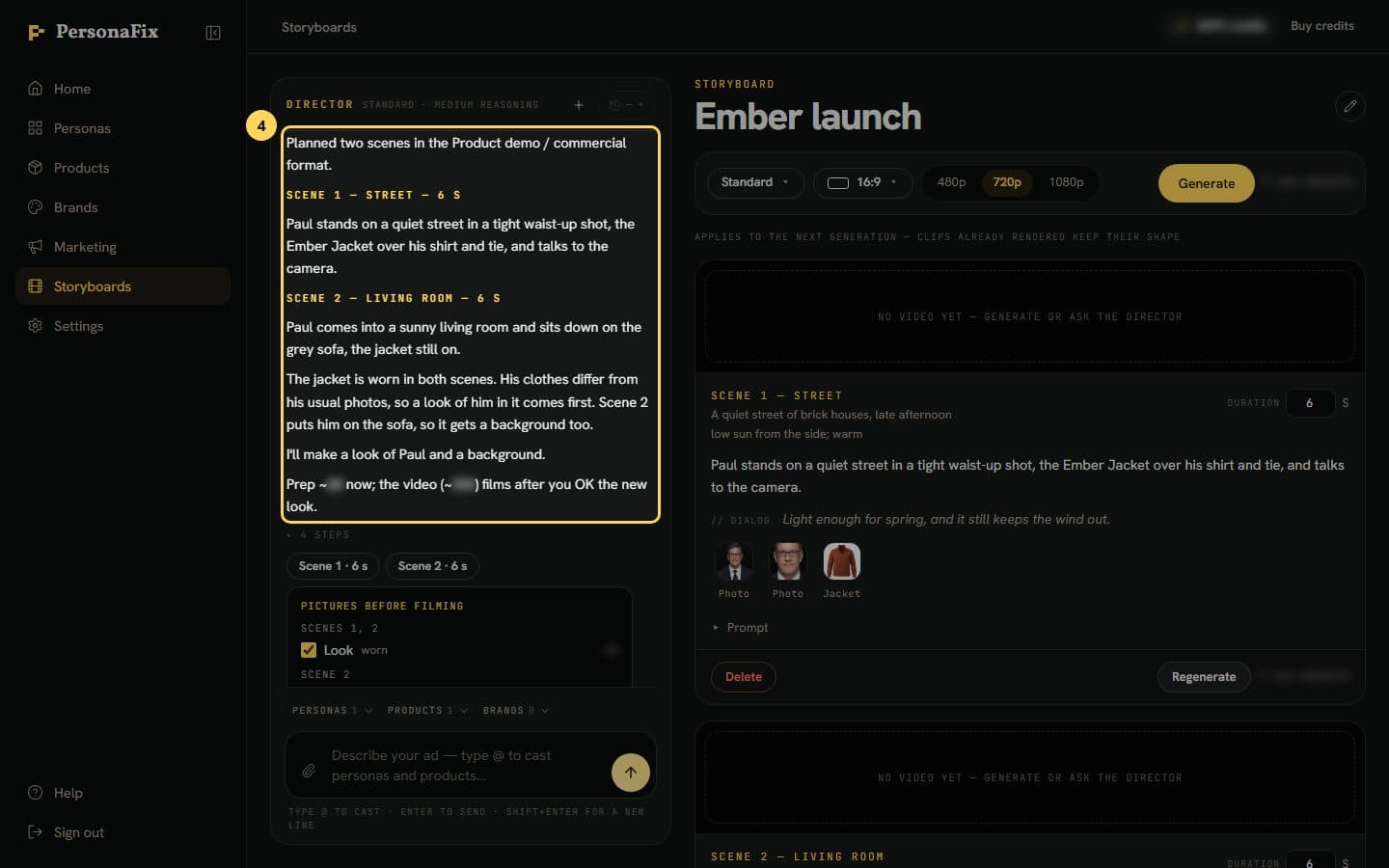
The reply says what happens to each item, scene by scene. It also names any change the chat added itself. If you disagree, say so in the chat.
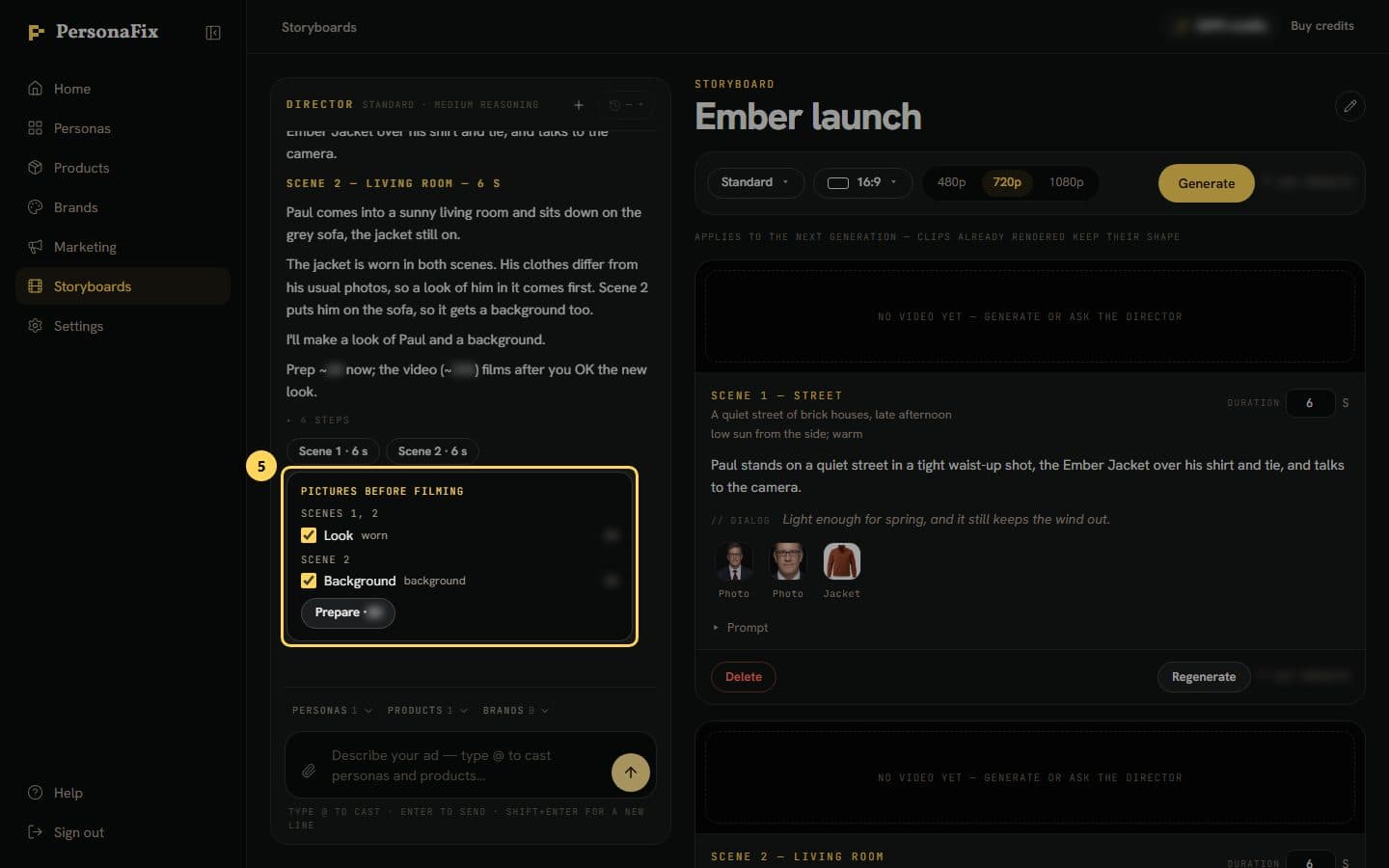
Step 5: Check the Pictures before filming card
When a scene needs pictures first, the chat adds one priced card: a look, an item picture or a background, one row each. Untick any you do not want.
Step 6: Press Prepare and let it work
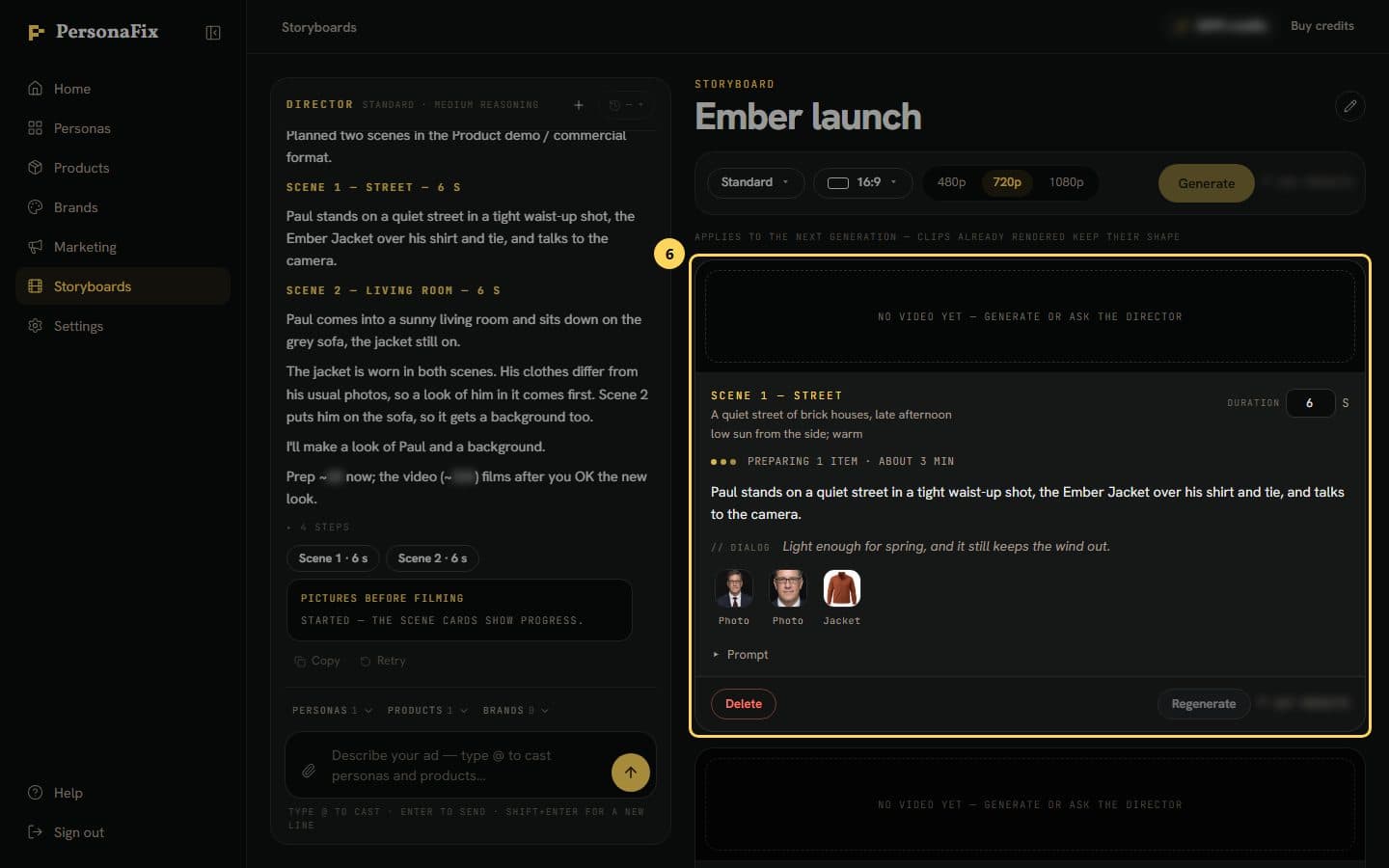
Press Prepare. Each scene card says how many items are being prepared, and about how long. Hover over that line to see which. Generate waits. You can leave the page.
Step 7: Check the new look, then film
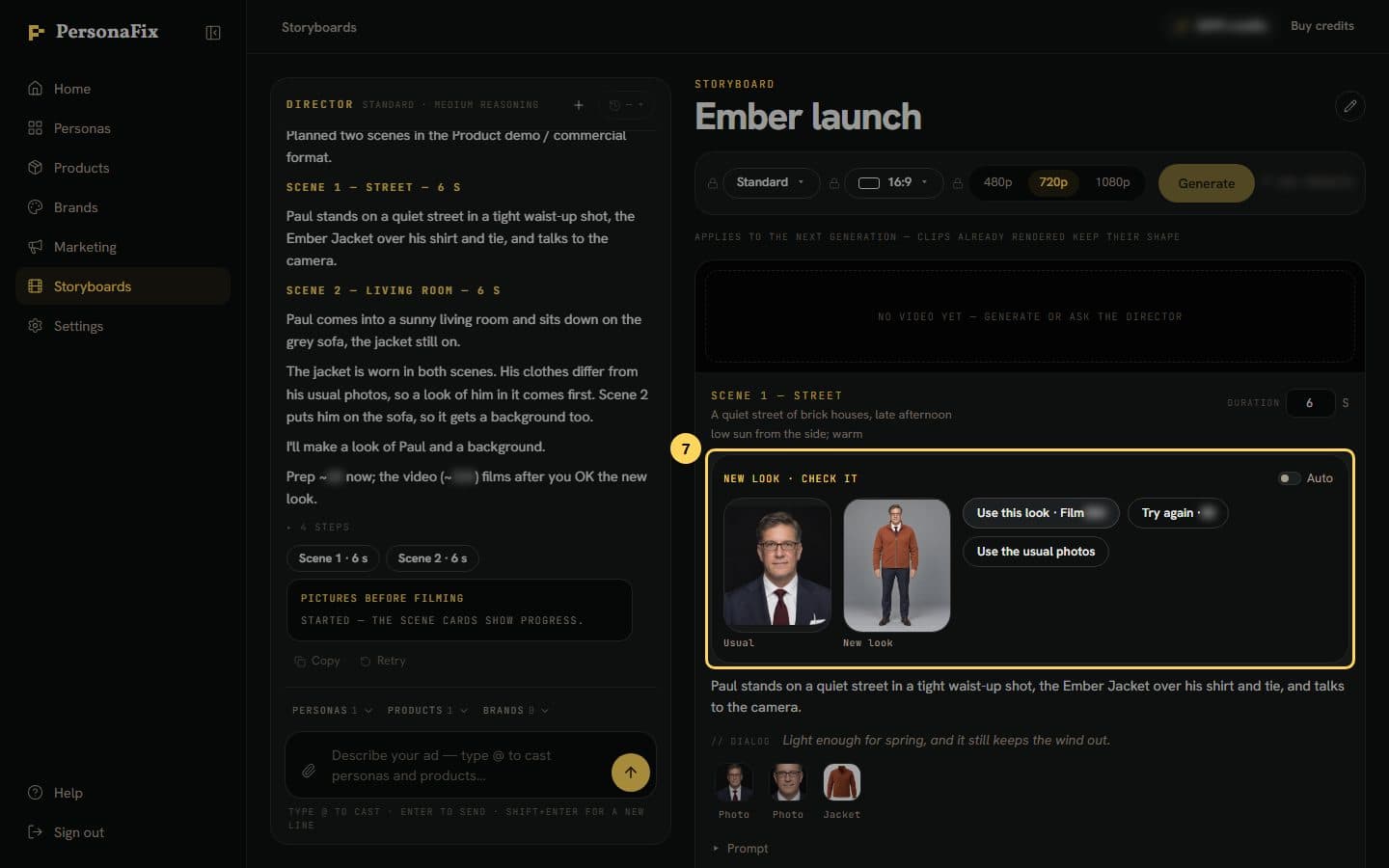
A new look waits beside the usual photo. Use this look · Film uses it and films the whole board. Try again makes another. Use the usual photos turns it down.
Step 8: See what each scene sends
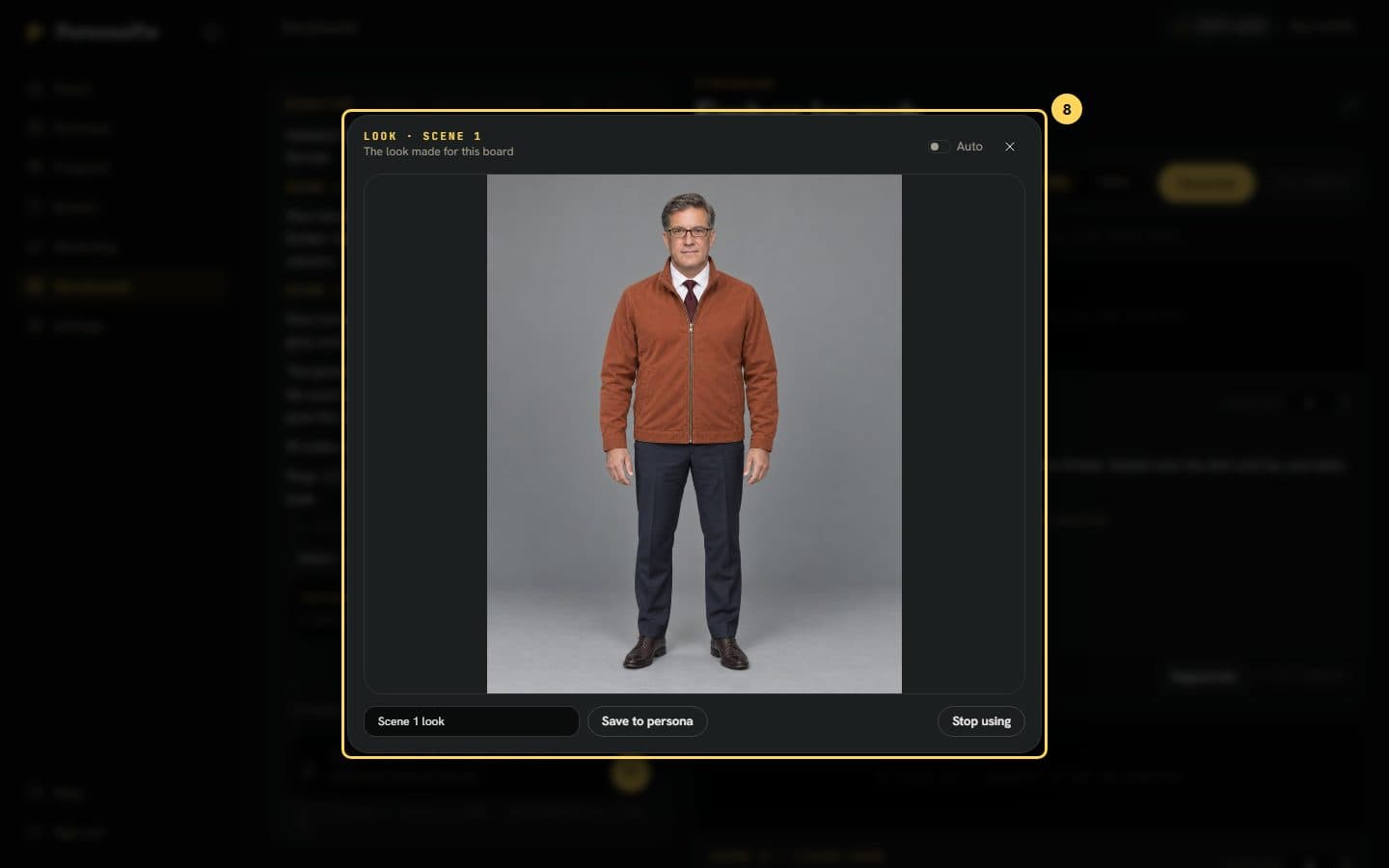
The row of pictures on each scene card is exactly what its video sends. Tap one to see it full size. Stop using goes back to the usual photos.
If something goes wrong
- Why did one press not film?
- A card with a new look reads Prepare and films nothing. You film with the second press, Use this look · Film. With Auto on, the card usually reads Prepare and film.
- I do not want to check every look.
- Turn on Auto in the look panel. It covers all your boards. A look that passes our checks is then used without asking. A look our checks flag, or could not read, still waits for you.
- The look says our check flagged something.
- Our check saw a detail that may be off, like a shoe or a letter. If it looks right to you, use it. A flagged look is free.
- The chat asks what a prop should look like.
- A prop with no photo needs your say. Upload a photo, ask for a plain one, or let the chat design it. Press one of its buttons.
- No look was made.
- The chat makes a look only when the clothes in a scene differ from your actor's usual photos. Their own clothes, a product they hold, or a talking head need none. Ask the chat if you want one.
- I turned a look down and nothing filmed.
- Use the usual photos only turns the look down. The look is still charged, unless our check flagged it. Press Generate to film without it. Your product still goes in from its photo.
- I pressed Generate and the new pictures were not used.
- Generate films with the pictures the board already has. It never makes new ones. When the chat offers a Pictures before filming card, press that card instead.
- Generate is greyed out.
- It waits while pictures are being made, or while a new picture waits for your OK. The scene cards say which.
- A picture could not be made.
- It is refunded and never used, and the scene card says which item failed. On Prepare and film, nothing films and the video is refunded too. The chat says what failed and offers choices.
- My product photo shows a model.
- The model's head is covered before the photo is used, so their face does not carry over. Products worn on the head, like glasses, hats or earrings, get a picture of their own.
- My actor takes their glasses off.
- When your actor's own glasses come off, or are left out of a scene, the card adds Eyes: a face without glasses. Like a new look, it waits for your OK, and Use this face · Film uses it. It is made once and reused on later boards.
- I stopped using a picture and want it back.
- Use it again shows only right after you press Stop using. Later, ask the chat to use the picture again. Stop using is not a refund.
- Can I use a look on another board?
- Open the look from the scene card's pictures and press Save to persona. A later board that dresses your actor in the same outfit reuses it at no charge. If you change your actor's photos, the saved look is out of date and the next card prices it again.
- The chat left some pictures off.
- A scene can hold only so many pictures. Ask the chat to take a person or an item out of that scene.
- The card did not make everything.
- One card makes at most nine new pictures. The chat says how many are left. When this card is done, ask the chat for the rest.
- The chat says only a background, or nothing, can be prepared.
- Some video models take no looks or item pictures. The board then films on the usual photos.
Still stuck? Contact support.