How to Make an AI Video With Your Own AI Actor
To make an AI video, start a storyboard, cast your actor and any product, and tell the chat what the video is for. The chat plans the scenes. If a scene needs an outfit, a prop or a background picture first, it offers one priced card for them. The Generate button shows an estimate for filming. The final charge can be a little higher or lower, and failed scenes are refunded. Press Generate, or the card when the chat offers one, then download the finished video.
8 stepsUpdated
Screenshots show an example account. Prices are blurred because the example numbers are not real prices.
Step 1: Start a new storyboard
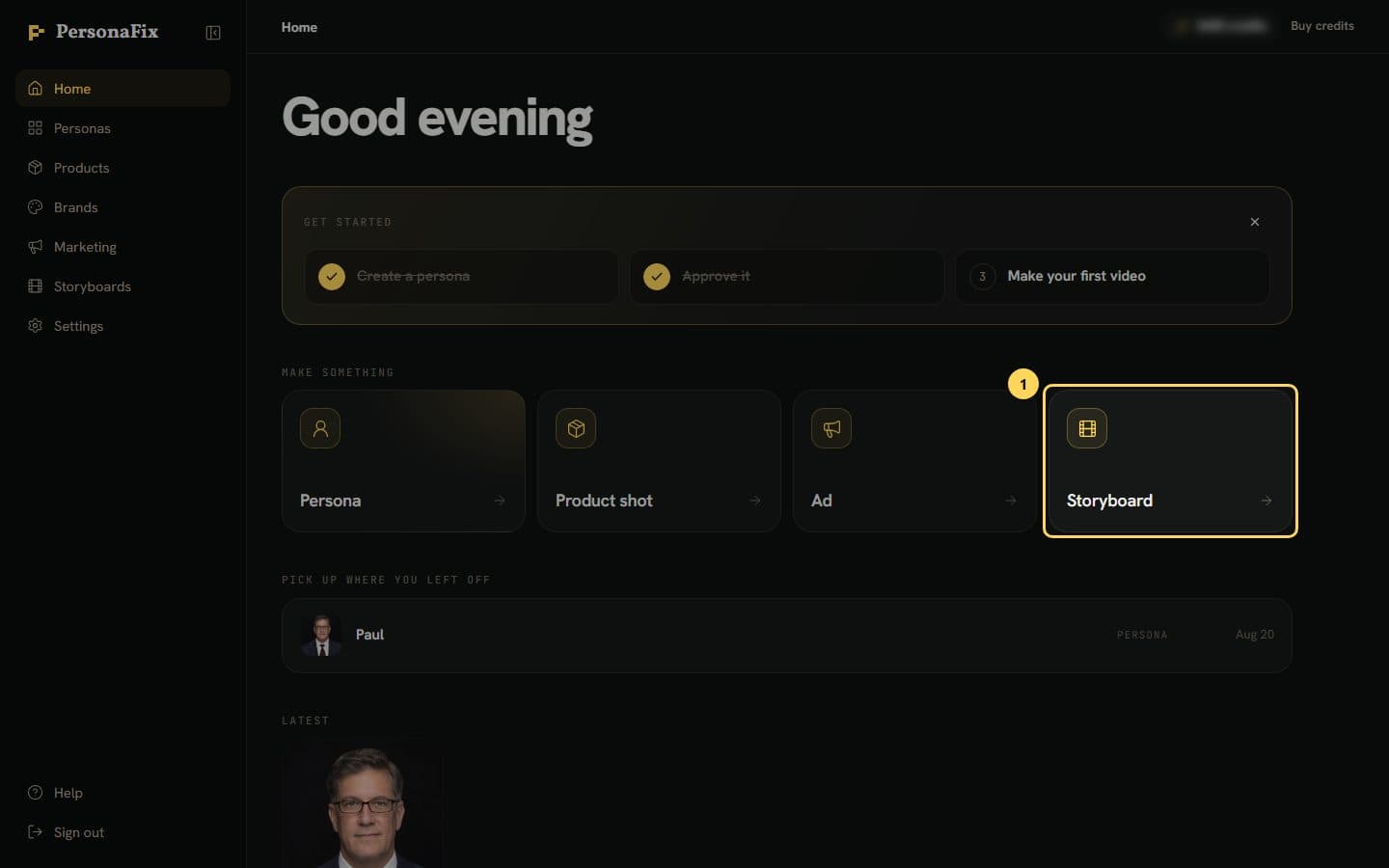
On the home screen, press Storyboard under Make something. Your Storyboards page opens, ready for a new board.
Step 2: Name the board
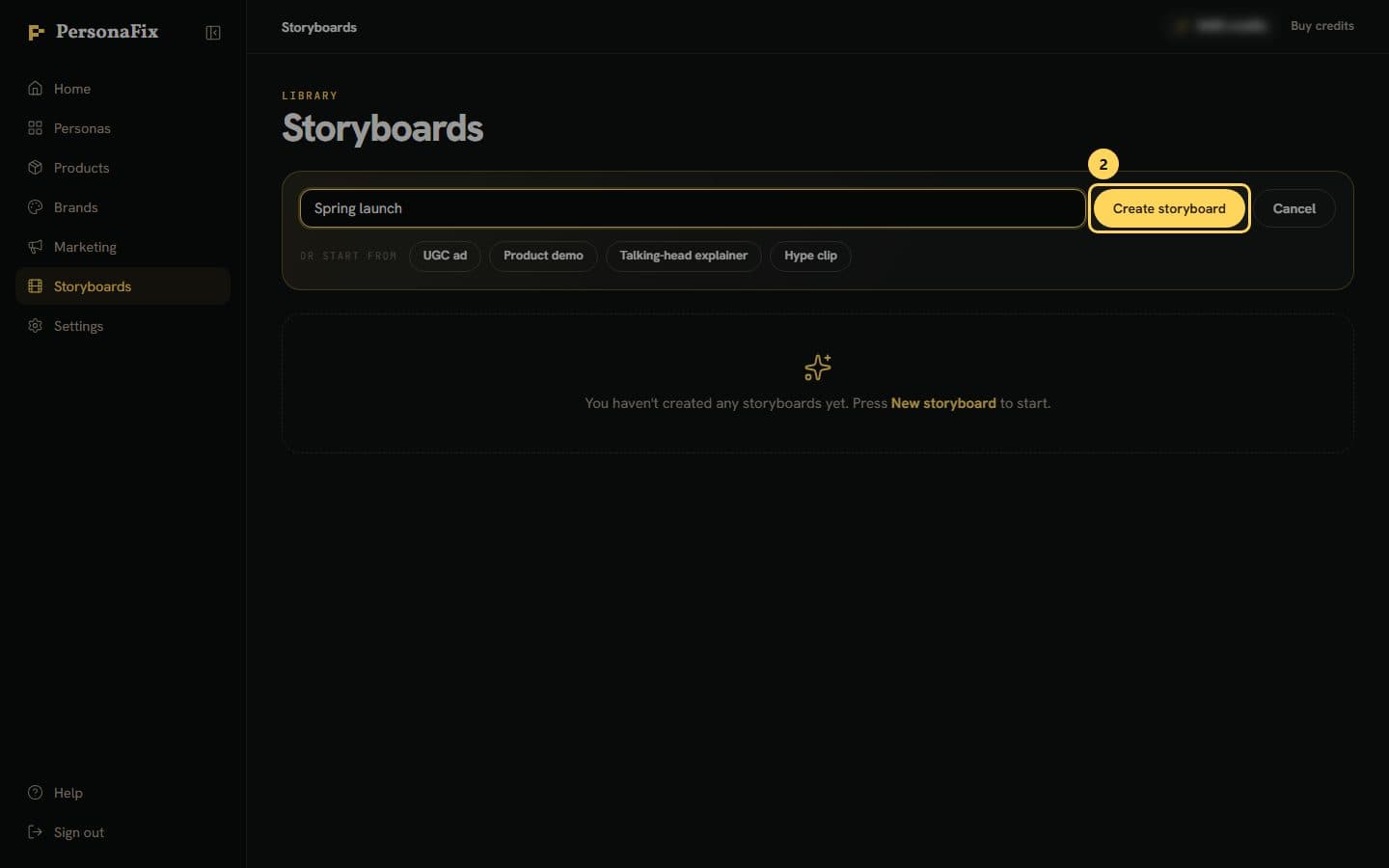
Type a name, like Spring launch, and press Create storyboard. The new board opens with the chat beside the scenes.
Step 3: Cast your actor and product
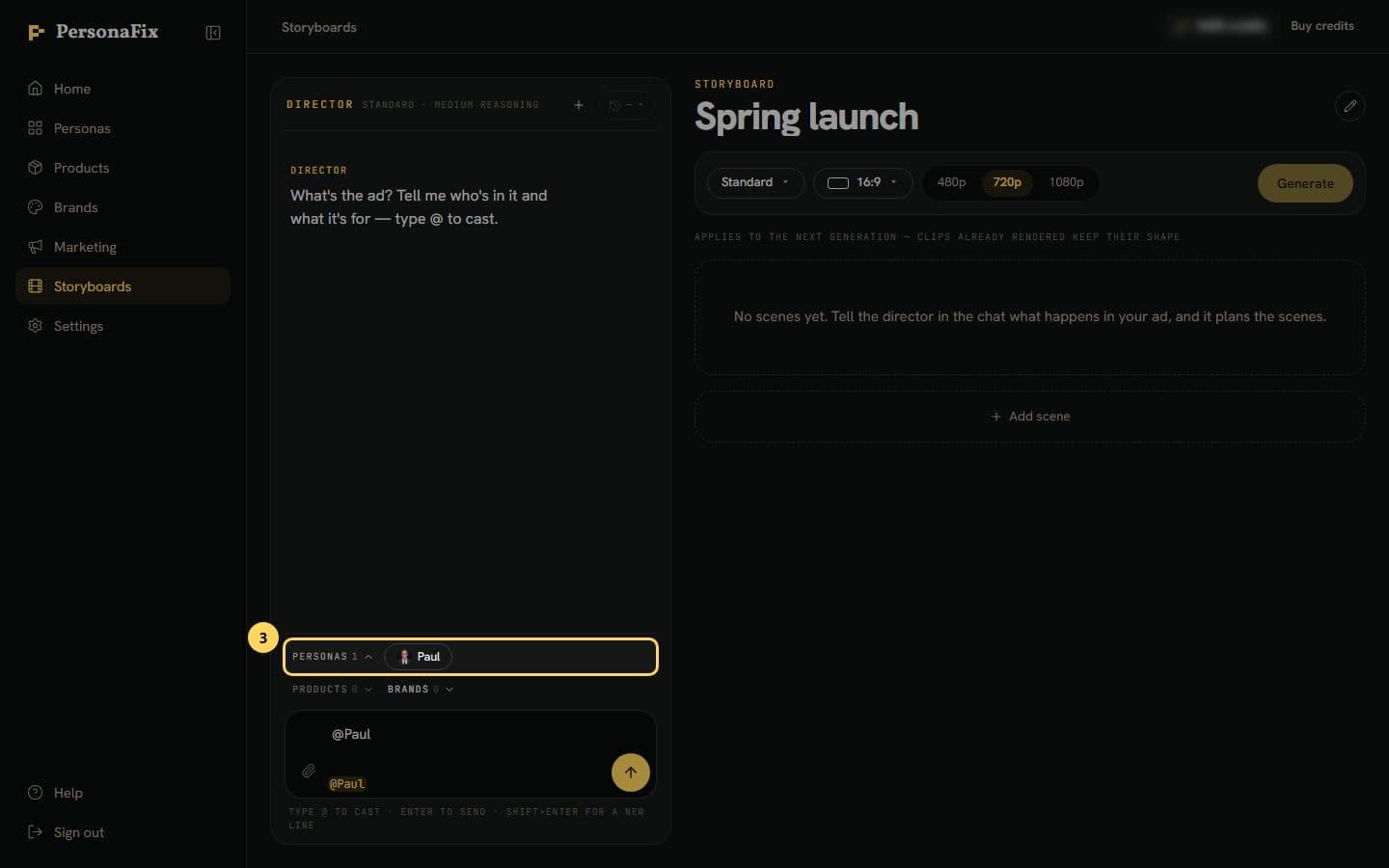
Open Personas above the message box and press your actor, or type @ and pick them. Add a product the same way. Only approved actors can be filmed.
Step 4: Plan the scenes with the chat
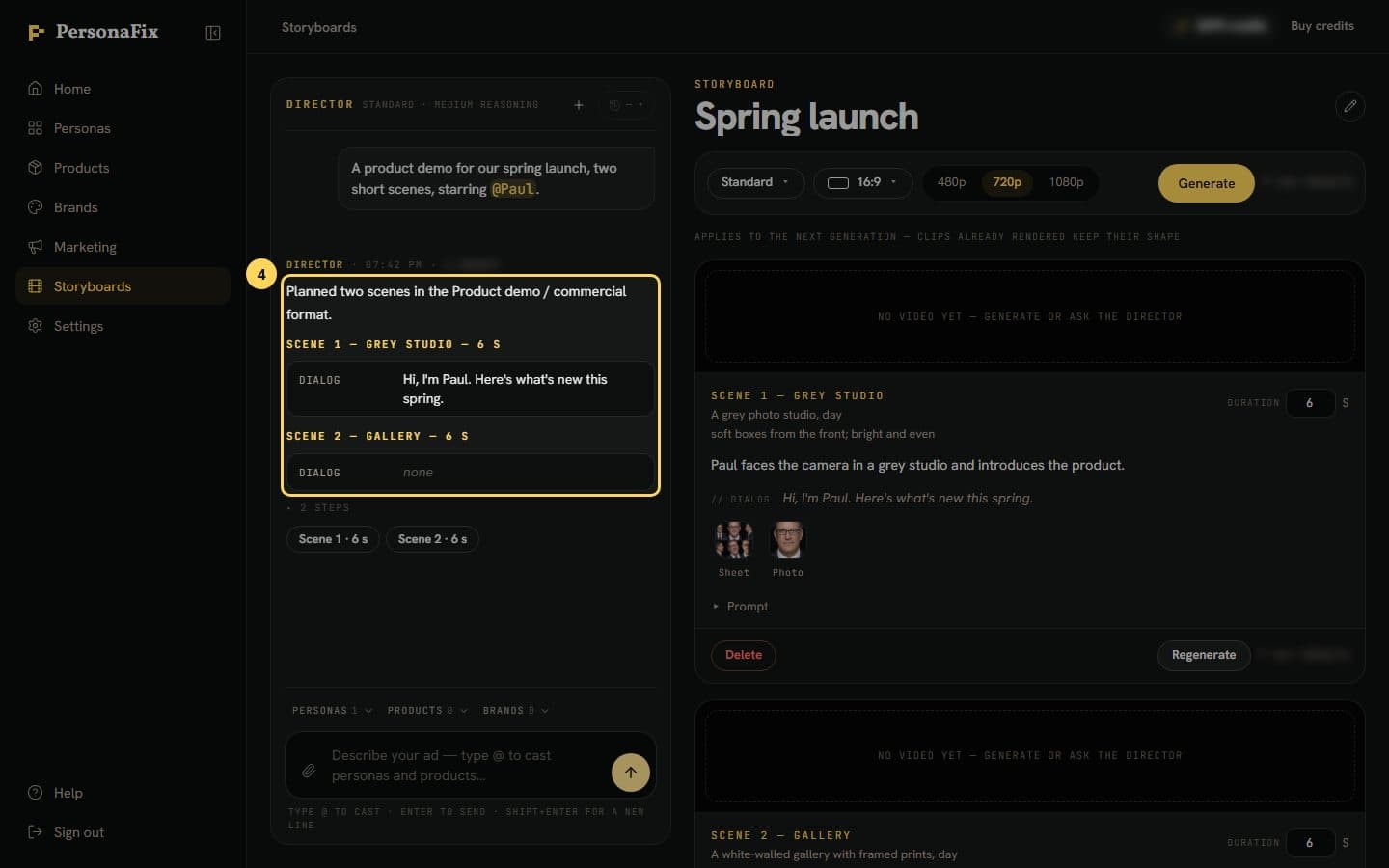
Say what the video is for and the format, like a product demo. The chat writes the scene cards. It also says what happens to any product you cast.
Step 5: Prepare pictures, if the chat asks
If a scene needs an outfit, a prop or a background, the chat adds a priced card, Pictures before filming. Press it instead of Generate. The product-in-video guide explains it.
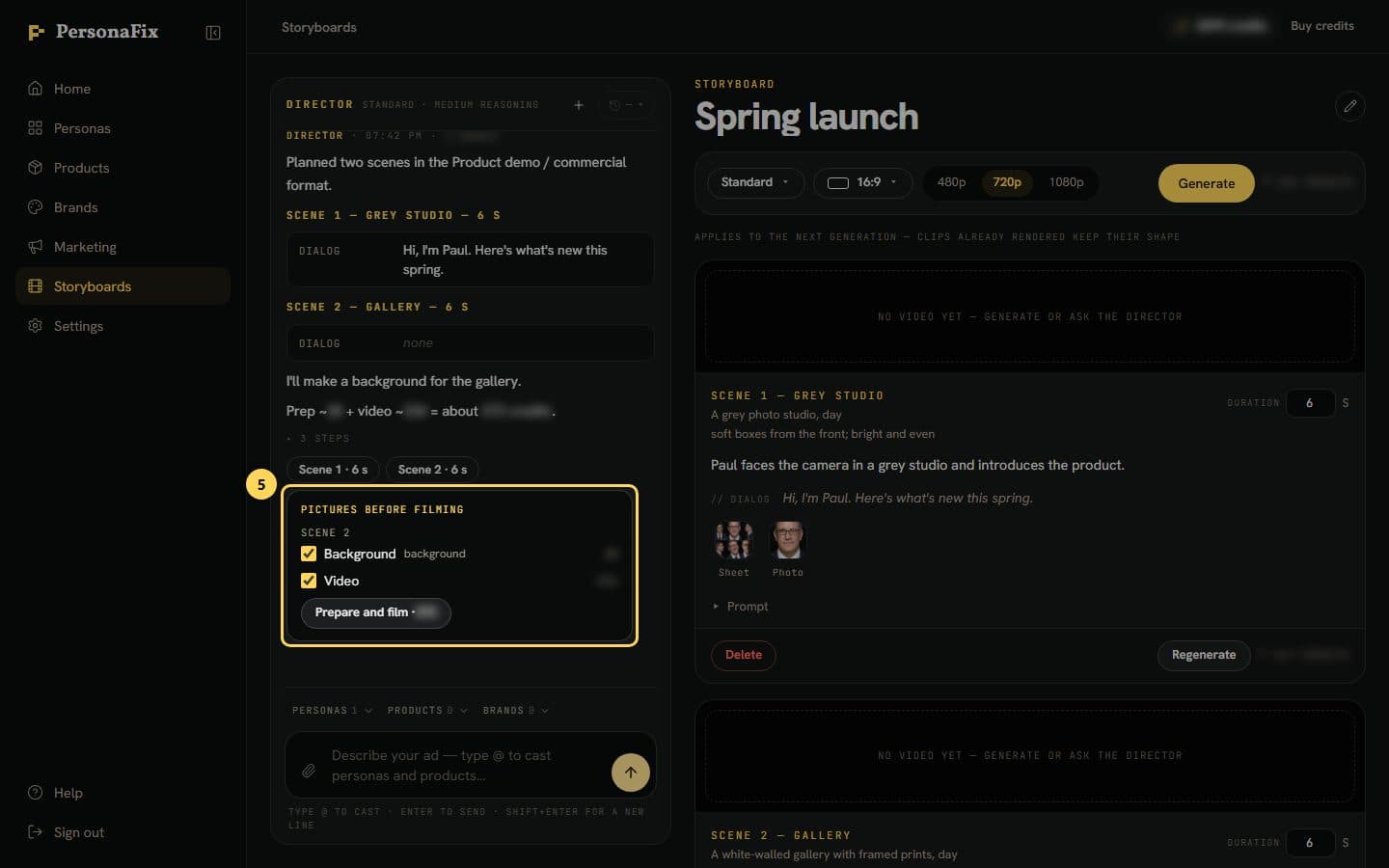
Step 6: Check the estimate
With no card, you film with Generate. The Generate button shows an estimate (≈) for filming. The final charge can be a little higher or lower. Failed scenes are refunded.
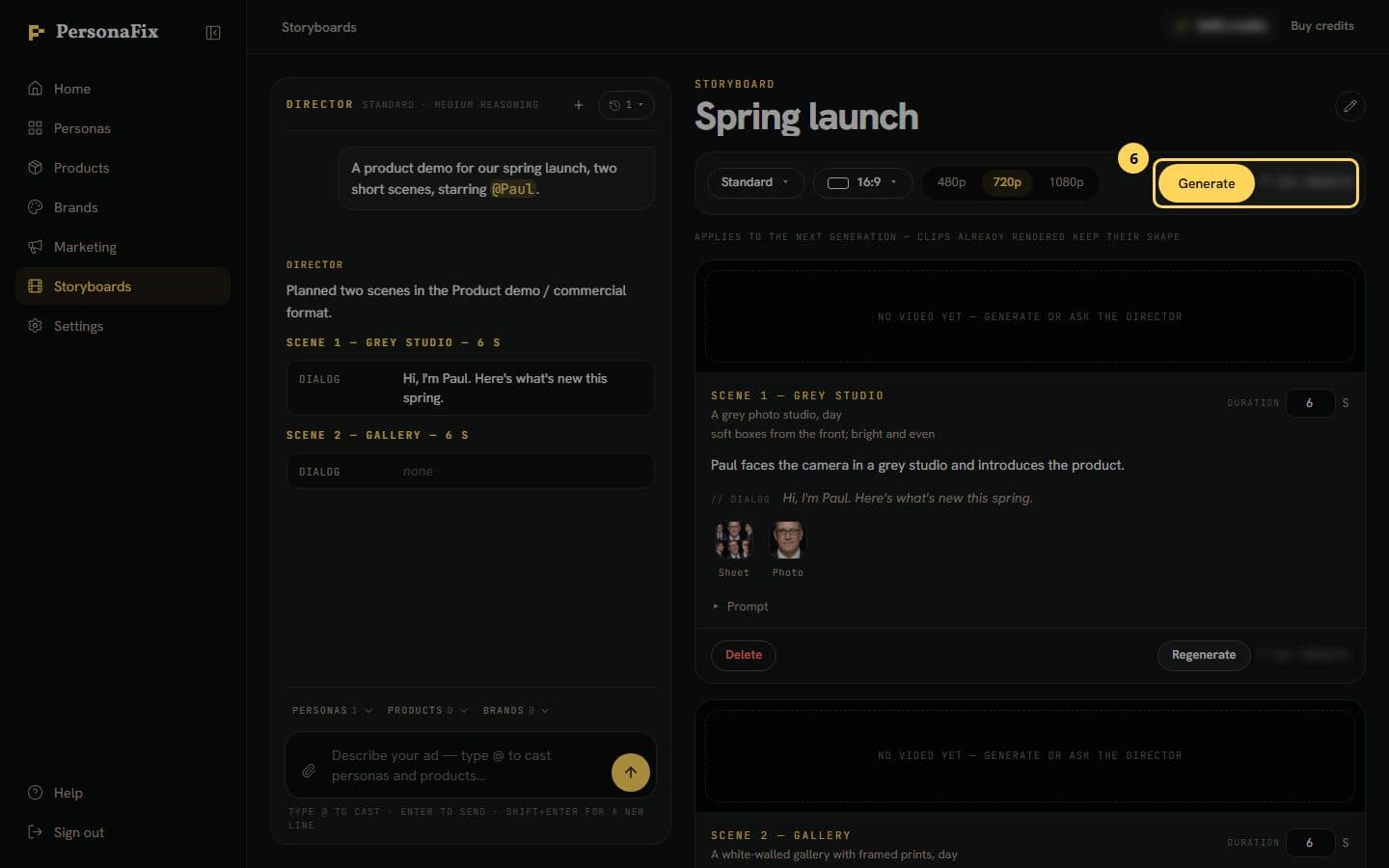
Step 7: Press Generate and let it film
Press Generate. Filming starts right away. Scene cards show Filming.
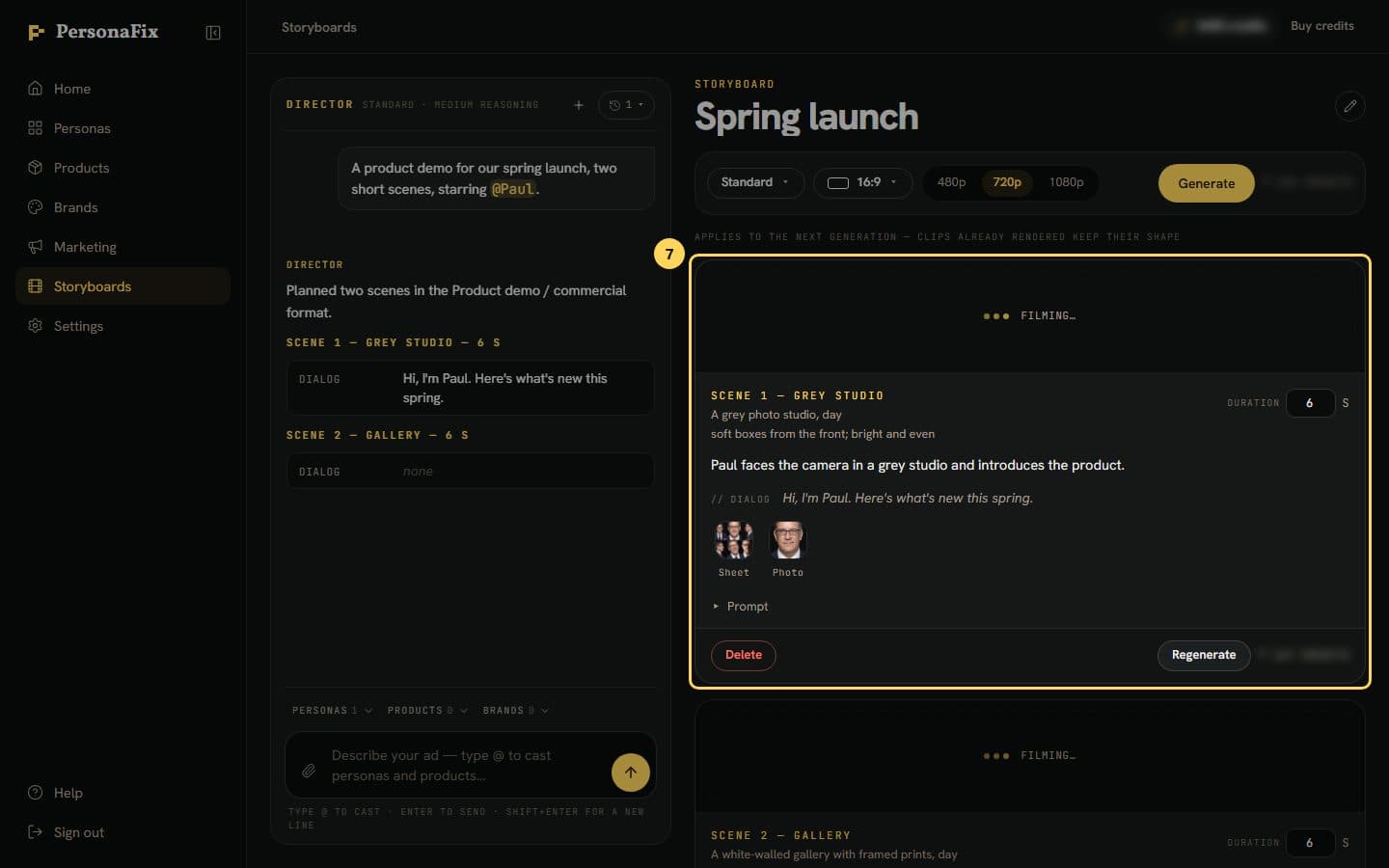
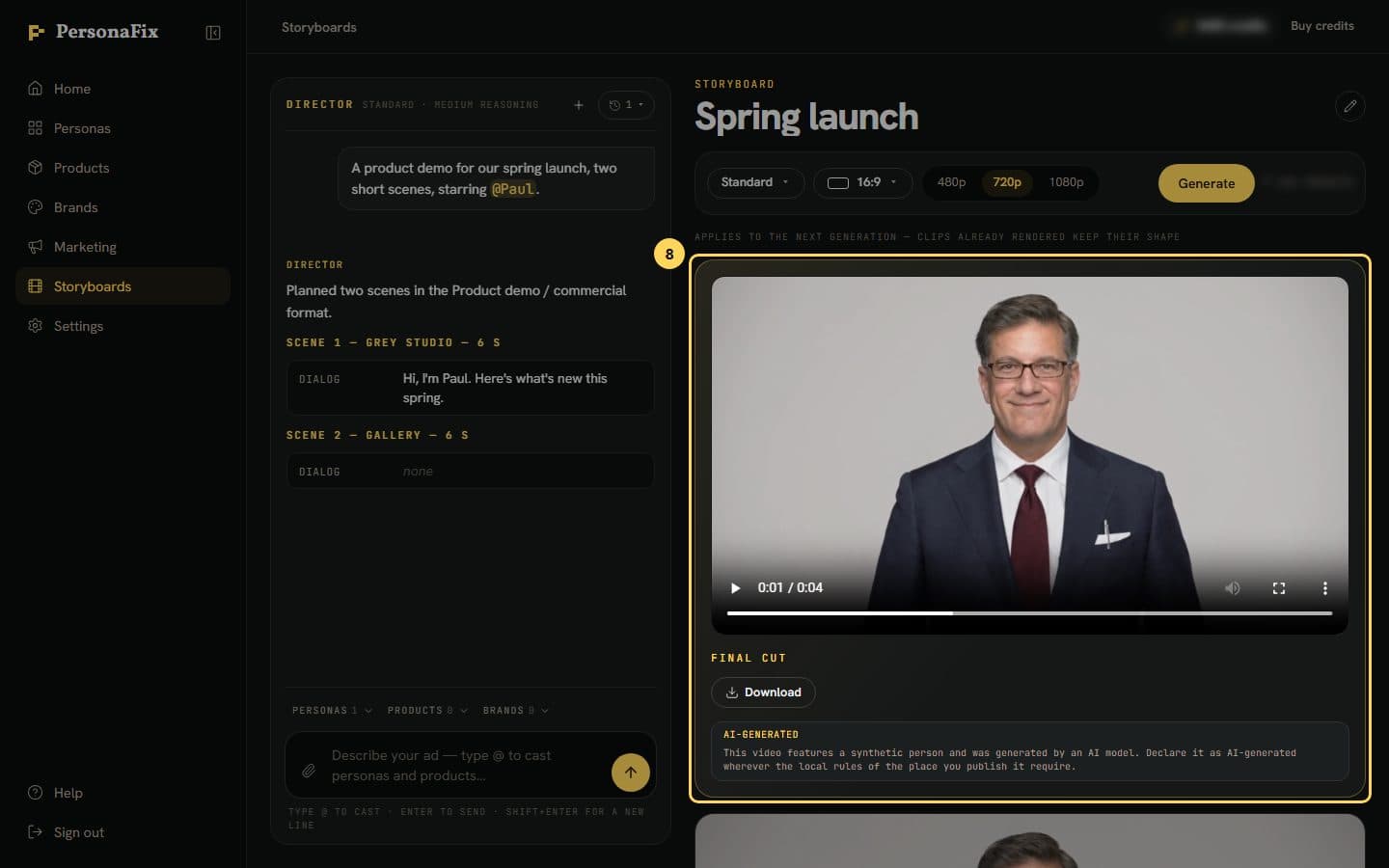
Step 8: Watch and download
The finished video plays in the Final cut panel above the scenes. Download it from the player's ⋮ menu, or right-click the video and choose Save video as.
If something goes wrong
- Can I show the chat a photo or a video?
- Yes. Press the paperclip by the message box. Add up to six files: photos up to 20 MB, videos up to 50 MB. The chat decides how to use each one and tells you.
- The chat stopped before it finished.
- A long plan can run out of steps in one reply. The chat says what is left. Press Continue under its reply.
- The chat says Tightening the scenes…
- A scene had too much to film in one clip. The chat shortens it and saves it again by itself. Wait for its reply.
- I cannot change the model, format or size.
- Once a board has prepared pictures, these are set with the chat, so no picture is wasted. Picking one writes the ask in the chat. Press Send.
- My actor is not in the cast list.
- The list shows the personas on your account. Create the actor first, then approve them in the studio before you film.
- The Generate button is greyed out.
- The board needs at least one scene and enough credits. It also waits while pictures are being prepared, or while a new picture waits for your OK. The scene cards say which.
- I asked the chat to film, and nothing started.
- The chat never starts a paid render by itself. It puts a priced card under its reply. Press the card's button to start.
- Generate says a scene needs a quick refresh.
- That scene was planned before an update. Ask the chat to refresh it, then press Generate again. Nothing was charged.
- The estimate is higher than I expected.
- If Check each clip for mistakes is on in Settings, the estimate includes checking each clip. Hover over the price to see how much.
- One scene came out wrong.
- Regenerate just that scene from its card. The card shows its own estimated price. With the clip check on, a flagged scene shows the frames in doubt, and usually a priced redo.
- I liked the old version of a scene better.
- Old clips are kept until you delete the board. You cannot switch back in the app. In Settings, Export my data downloads a file with a link to every version. The links last a day.
Still stuck? Contact support.
Related
- GuideHow to Put Your Product in an AI Video: Props and Outfits
- GuideHow to Use Your Own Photos and Clips in an AI Video
- GuideHow to Create an AI Actor With a Consistent Face and Voice
- GuideHow to Make an AI Ad With Your Actor, Product and Brand
- BlogAI UGC Video Ads: How to Make Them Without Writing Prompts