How to Edit and Approve Your AI Actor
To edit an AI actor, open them in the studio and tell the chat what to change. The chat works out which photos the change affects, often most of the six, and offers to re-shoot them. When the photos and voice look right, press Approve persona so you can cast them in videos. You can still edit them later.
6 stepsUpdated
Screenshots show an example account. Prices are blurred because the example numbers are not real prices.
Step 1: Open your actor
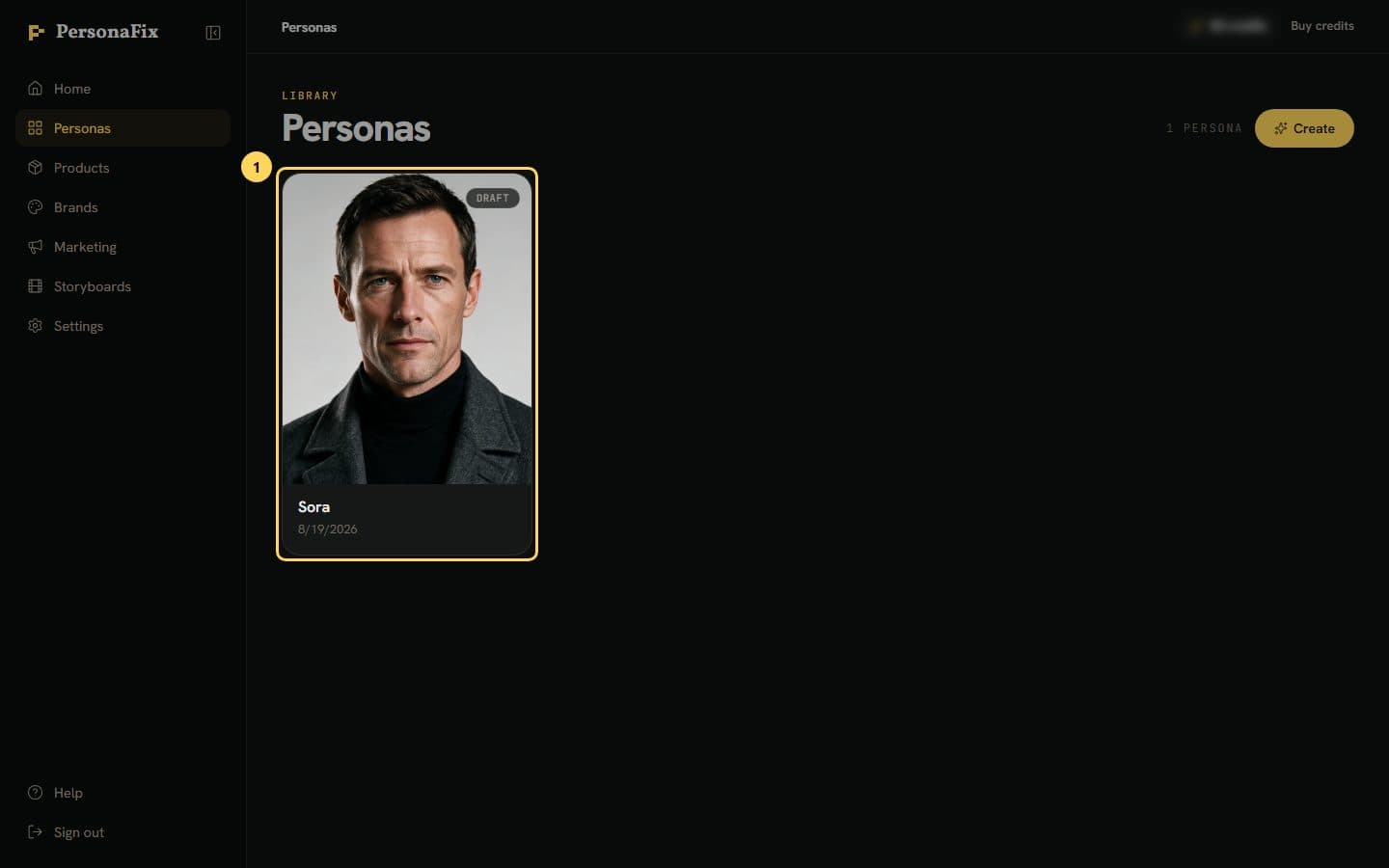
Go to your Personas page and open the actor you want to change. The studio shows their photos, voice and approval checklist.
Step 2: Ask the chat for your changes
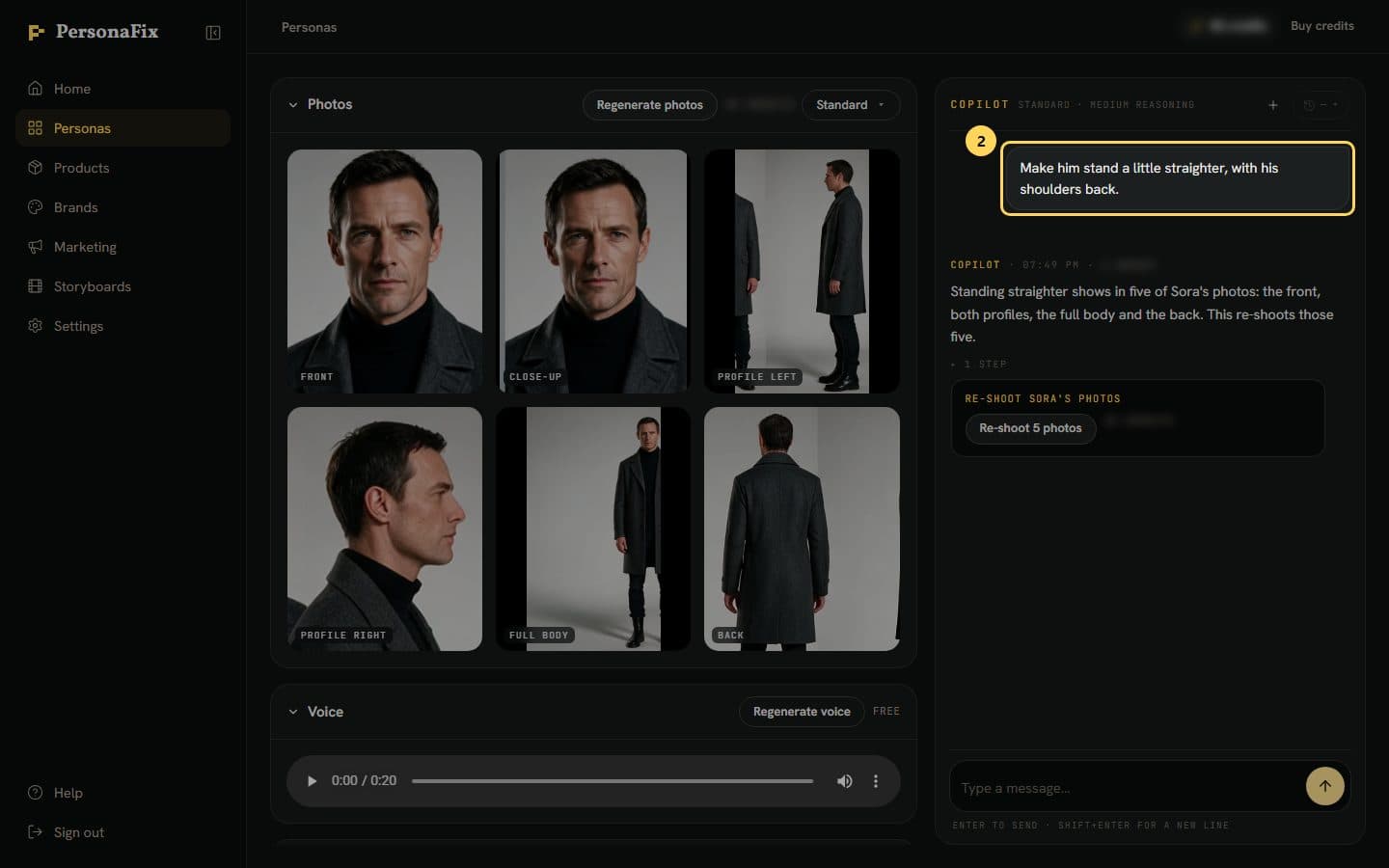
Type the change in plain words, like shorter hair or a warmer smile. Put everything you want changed in one message.
Step 3: Re-shoot the photos
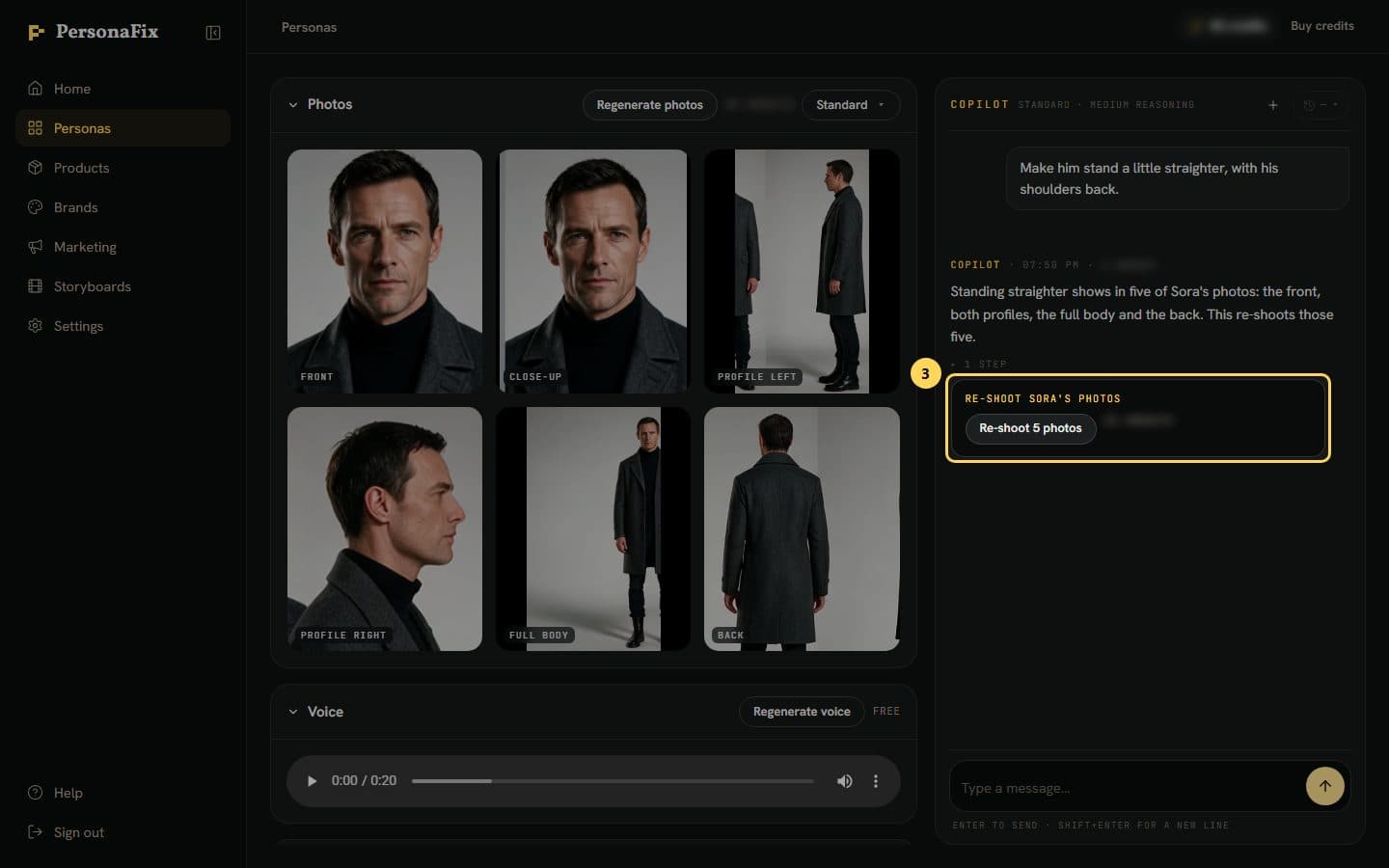
The chat says how many photos the change affects and offers a Re-shoot button. The button shows the price before you press it.
Step 4: Watch the new photos land
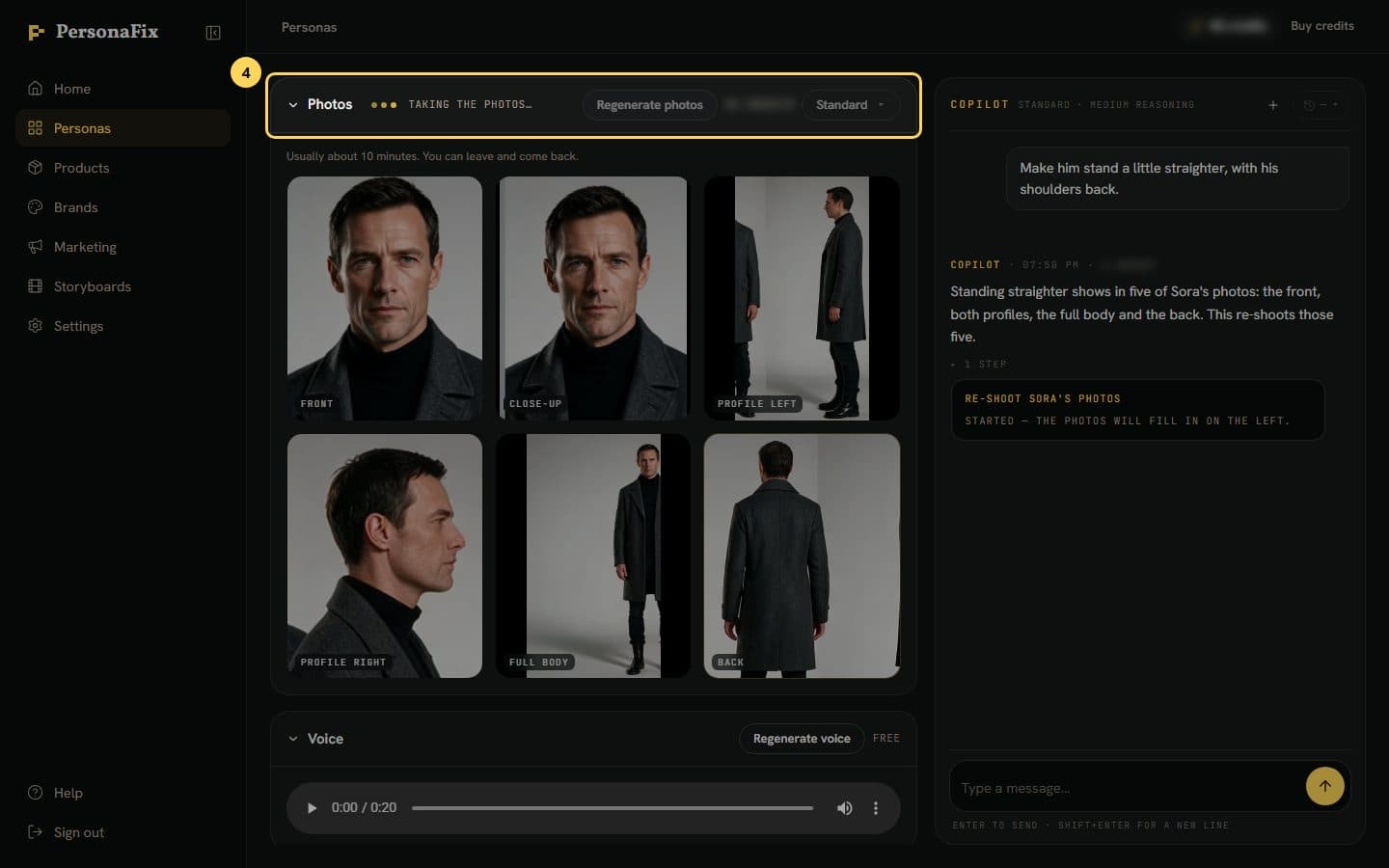
Three yellow dots and a line show in the Photos panel: "Taking the photos…", then one such as "Retaking photo 2 of 5…". You can leave and come back.
Step 5: Listen to the voice
Play the clip in the Voice panel. Changes to age, gender, build or voice make a new voice clip, so listen again. If it sounds wrong, press Regenerate voice.
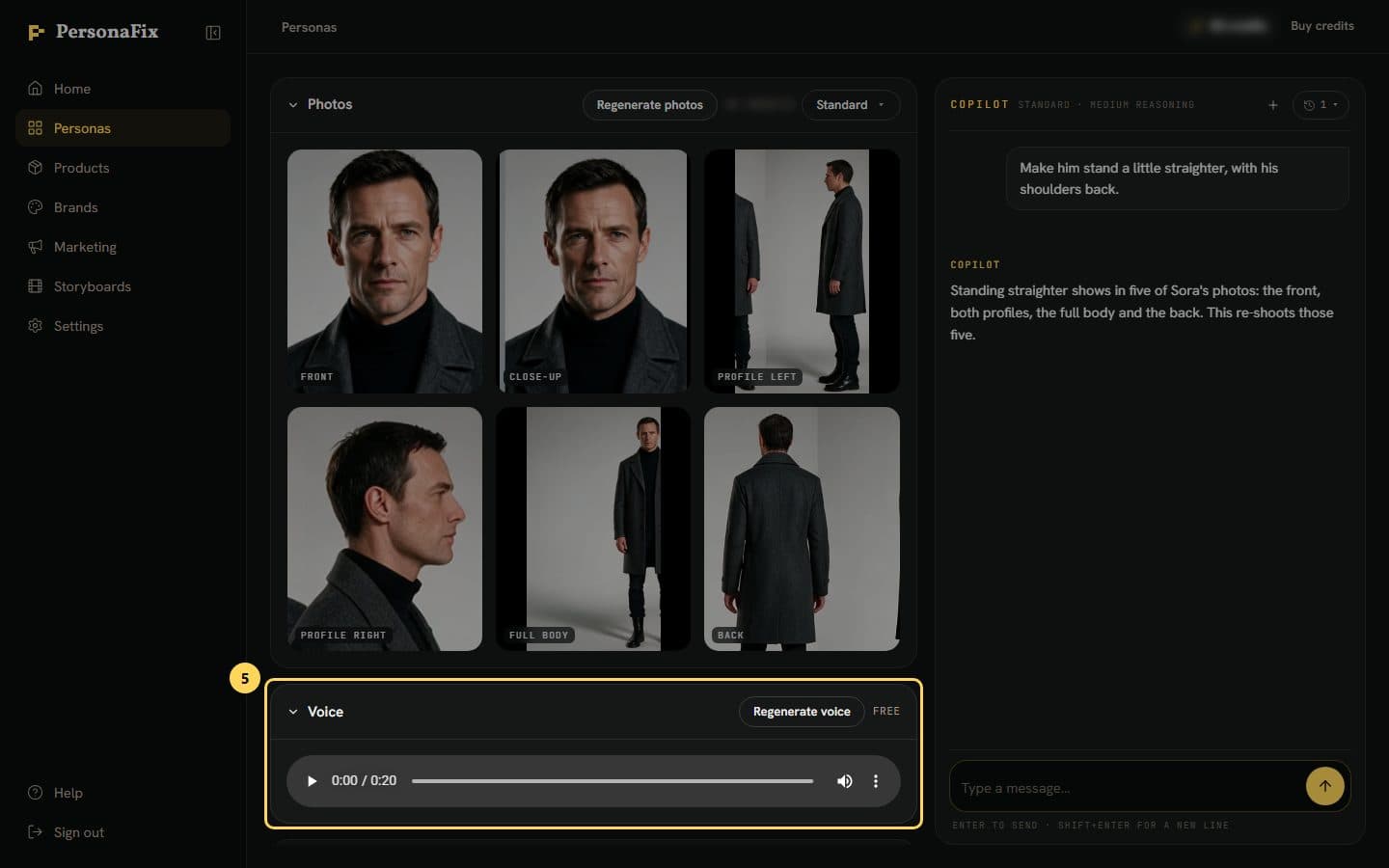
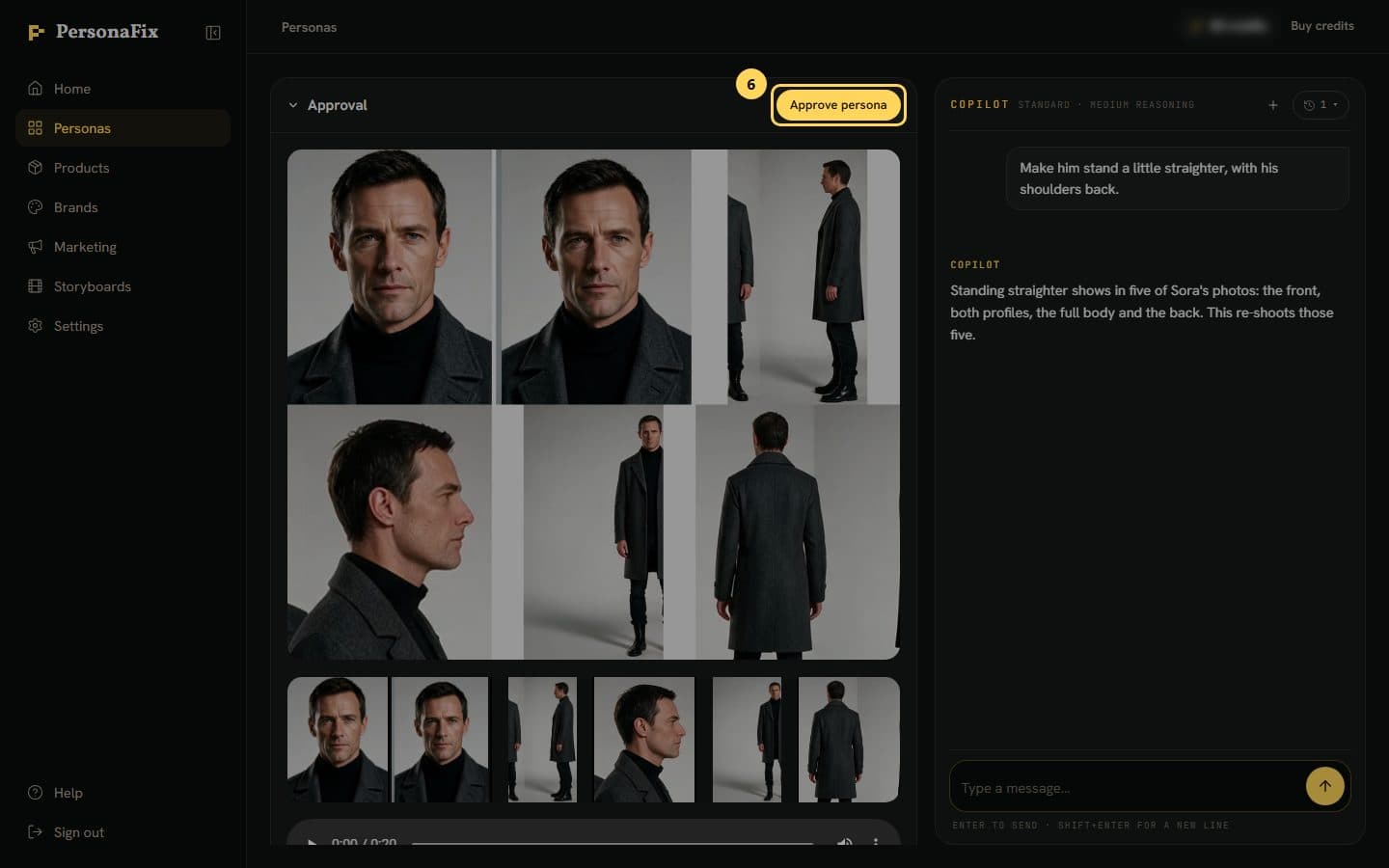
Step 6: Approve your actor
When the photos and voice look right, press Approve persona. Only approved actors can be cast. Then press Make a video to start one.
If something goes wrong
- Approve persona is greyed out.
- Approval needs the photos and a voice. The checklist in the Approval panel shows what is still missing.
- I liked the old photos better.
- Press the versions button in the Photos header (it appears after your first re-shoot) and restore an earlier set. The last three sets are kept.
- I edited my actor after making a video.
- Looks made from the old photos, saved ones too, and the face without glasses go out of date. They are not reused. A video that needs them again offers to remake them, at a price shown first. Restoring an earlier photo set does the same.
- An edit changed more than I wanted.
- Say exactly what should change and what should stay the same. To go back, restore the earlier set from the versions button in the Photos header.
Still stuck? Contact support.